Deploying an HA Kubernetes cluster with an external etcd topology on a local machine
In this guide, we will explore the steps to deploy a High Availability (HA) Kubernetes cluster with an external etcd topology on a local machine running macOS. We will use Multipass to create virtual machines, cloud-init for their initialization, kubeadm for cluster initialization, HAProxy as a load balancer for control plane nodes, Calico as a Container Network Interface (CNI), and MetalLB for load balancing traffic to worker nodes.
This guide is intended both for self-study and for taking the first steps in deploying a production-level cluster. Each step is explained in detail, with descriptions of components and their roles.
Cluster Architecture
Highly available Kubernetes clusters are used in production environments to ensure the continuous operation of applications. Redundancy of key cluster components allows avoiding downtime in case of failure of individual control plane nodes or etcd.
Components
We will deploy the cluster using kubeadm on virtual machines running Ubuntu, created by Multipass and initialized using cloud-init.
-
Multipass — is a tool for quickly creating Ubuntu virtual machines in a cloud-like fashion on Linux, macOS, and Windows. It provides a simple yet powerful command-line interface that allows you to quickly access Ubuntu or create your own local mini-cloud.
Local development and testing can be challenging, but Multipass simplifies these processes by automating the deployment and teardown of infrastructure. Multipass has a library of ready-to-use images that can be used to launch specialized virtual machines or your own custom virtual machines, configured using the powerful cloud-init interface.
Developers can use Multipass to prototype cloud deployments and create new, customized Linux development environments on any machine. Multipass is the fastest way for Mac and Windows users to get an Ubuntu command line in their systems. You can also use it as a sandbox to try new things without affecting the host machine and without the need for dual-booting.
-
Cloud-init — is an industry-standard method of initialization, present in many distributions, for creating cloud instances on various platforms. It is supported by all major public cloud service providers, private cloud infrastructure providers, and bare-metal installations.
During boot, cloud-init detects the cloud it is running in and initializes the system accordingly. Cloud instances are automatically provided with networking, storage, SSH keys, packages, and other pre-configured system components on first boot.
Cloud-init provides the necessary linkage between the cloud instance startup and its connection so that it works as expected.
For cloud users, cloud-init provides cloud instance configuration management at first boot without the need to manually install required components. For cloud service providers, it provides instance initialization that can be integrated with your cloud.
If you want to learn more about what cloud-init is, why it is needed, and how it works, read the detailed description in its documentation.
-
Kubeadm — is a tool designed to provide the
kubeadm initandkubeadm joincommands as the best “quick practical ways” to create Kubernetes clusters.Kubeadm performs the necessary actions to get a minimal viable cluster up and running. By design, it only deals with the cluster deployment process, creating machine instances is out of its scope. Installing various additional components, such as the Kubernetes Dashboard, monitoring tools, and cloud-specific overlays, is also not part of its tasks.
-
Etcd with external topology. Etcd is a distributed key-value store with high consistency that provides a reliable way to store data that needs to be accessed by a distributed system or a cluster of machines. It correctly handles leader elections during network partitions and can withstand machine failures, even leader nodes.
Kubernetes uses etcd to store all of its configuration and cluster state. This includes information about nodes, pods, network configuration, secrets, and other Kubernetes resources. The high-availability topology of a Kubernetes cluster involves two placement options for etcd: stacked etcd topology and external etcd topology. In this guide, we will focus on the external etcd topology, where etcd is deployed separately from the Kubernetes control plane nodes. This provides better isolation, scalability, and flexibility in managing the cluster.
-
HAProxy. To distribute traffic to the control plane nodes, we will use the load balancer HAProxy. This will allow us to ensure high availability of the Kubernetes API server. In addition, we will deploy local HAProxy instances on each control plane node to access the etcd cluster nodes.
-
Calico. Since kubeadm does not create the network in which pods operate, we will use Calico, a popular tool that implements the Container Network Interface (CNI) and provides network policies. It is a unified platform for all Kubernetes networking, network security, and observability needs, working with any Kubernetes distribution. Calico simplifies network security enforcement using network policies.
Cluster Topology
graph TB
  subgraph C [Control Plane and etcd]
    direction TB
    subgraph CP [Control Plane Nodes]
        direction LR
        CP1 --> CP2
        CP2 --> CP1
        CP1 --> CP3
        CP3 --> CP2
        CP2 --> CP3
        CP3 --> CP1
    end

    subgraph E [etcd cluster]
        direction LR
        E1 --> E2
        E2 --> E1
        E1 --> E3
        E3 --> E2
        E2 --> E3
        E3 --> E1
    end

    subgraph HA [Keepalived
    10.10.0.100]
      HA1(HAProxy
      10.10.0.101) <----->
      HA2(HAProxy
      10.10.0.102)
    end

    CP <--> HA
    E <--> CP

  end

    W1(Worker
    Node 1
    10.10.0.31)
    W2(Worker
    Node 2
    10.10.0.32)
    W3(Worker
    Node 3
    10.10.0.33)
    WN(Worker
    Node …
    10.10.0.9X)

    HA --> PN(Calico CNI)
    PN --> W1 & W2 & W3 & WN--> WLB <--> U(Users)

    CP1(Control Plane
    Node 1
    10.10.0.21)
    CP2(Control Plane
    Node 2
    10.10.0.22)
    CP3(Control Plane
    Node 3
    10.10.0.23)
    E1(etcd
    Node 1
    10.10.0.11)
    E2(etcd
    Node 2
    10.10.0.12)
    E3(etcd
    Node 3
    10.10.0.13)

    WLB(MetalLB
    10.10.0.200)
Prerequisites
To deploy the cluster, we will need:
- A local computer with Multipass installed. For macOS, it can be installed using
brew install multipass - kubectl — The Kubernetes command-line tool, kubectl, allows you to run commands against Kubernetes clusters. You can use kubectl to deploy applications, inspect and manage cluster resources, and view logs (
brew install kubectl) - Basic knowledge of Kubernetes and Linux
- yq (mikefarah’s version) — a lightweight and portable command-line processor for YAML, JSON, INI, and XML.
SSH Key Setup
Secure Shell, SSH (English: Secure Shell) is a network protocol that allows remote management of a computer. It encrypts all traffic, including the authentication process and the transmission of passwords and secrets. To access the virtual machines, you need to set up SSH keys. We will use these keys to connect to all created virtual machines and transfer files between them.
Generating an SSH Key
To generate a key pair (public and private), run the following command:
# Create a new pair of SSH keys (if you don't have one)
ssh-keygen -t rsa -b 4096 -C "k8s-cluster" -f ~/.ssh/k8s_cluster_key

# View the public key
cat ~/.ssh/k8s_cluster_key.pub
Updating cloud-init Configuration
Use the obtained public key in the snipets/cloud-init-users.yaml file in the ssh-authorized-keys section:
users:
  - name: k8sadmin
    ssh_authorized_keys:
      # Replace with your actual public key
      - ssh-rsa AAAAB3NzaC1yc2EAAAADAQABAAABAQC...
You can also use variable substitution at runtime
$ multipass launch --cloud-init - <<EOF
users:
  - name: username
    sudo: ALL=(ALL) NOPASSWD:ALL
    ssh_authorized_keys:
      - $( cat ~/.ssh/id_rsa.pub )
EOF
Accessing Virtual Machines via SSH
After deployment, we can access the virtual machines using the following commands:
multipass shell <vm-name>
# or
ssh -i ~/.ssh/k8s_cluster_key k8sadmin@<vm-ip>
Multipass has a built-in shell command that allows us to connect to any created virtual machine without additional SSH configuration. However, it uses the default user ubuntu. If you want to connect as the k8sadmin user, which we will create using cloud-init, use ssh -i ~/.ssh/k8s_cluster_key k8sadmin@<vm-ip>.
Environment Preparation
Create a project directory and the necessary files.
mkdir k8s-ha-cluster
cd k8s-ha-cluster
Creating Scripts and Configurations
Virtual Machine Parameters
To deploy the virtual machines, we need the following parameters:
| Node | Quantity | cpus |
memory |
disk |
network |
|---|---|---|---|---|---|
| etcd | 3+ or (2n+1)[1] |
2 | 2G | 5G | name=en0,mode=manual |
| control plane | 3 | 2 | 2.5G | 8G | name=en0,mode=manual |
| worker nodes | 3+ | 2 | 2G | 10G | name=en0,mode=manual |
| HAProxy+Keepalived | 2 | 1 | 1G | 5G | name=en0,mode=manual |
Cloud-init Configurations
We will use pre-created cloud-init virtual machine configuration snippets to speed up their deployment.
User Creation
Let’s create the user k8sadmin settings in snipets/cloud-init-user.yaml:
# Create the directory if it doesn't exist
mkdir -p snipets

cat << EOF > snipets/cloud-init-user.yaml
# User settings
users:
  - name: k8sadmin
    sudo: "ALL=(ALL) NOPASSWD:ALL"
    groups: sudo,users,containerd
    homedir: /home/k8sadmin
    shell: /bin/bash
    lock_passwd: false
    ssh_authorized_keys:
      # Your SSH key
      - $( cat ~/.ssh/k8s_cluster_key.pub )
EOF
We have already discussed the user configuration in the SSH key settings. You can read about other parameters in the Including users and groups section of the cloud-init documentation.
Base Configuration for Cluster Nodes
The base cloud-init configuration for our cluster nodes will be in snipets/cloud-init-base.yaml:
#cloud-config

# Add user settings from snipets/cloud-init-users.yaml here

# Commands that run early in the boot stage to prepare the GPG key
bootcmd:
  - mkdir -p /etc/apt/keyrings
  - curl -fsSL https://pkgs.k8s.io/core:/stable:/v1.34/deb/Release.key | gpg --dearmor -o /etc/apt/keyrings/kubernetes-apt-keyring.gpg

# Apt repository configuration
apt:
  sources:
    kubernetes.list:
      source: "deb [signed-by=/etc/apt/keyrings/kubernetes-apt-keyring.gpg] https://pkgs.k8s.io/core:/stable:/v1.34/deb/ /"

# System update
package_update: true
package_upgrade: true
To install the components necessary for the cluster operation, we need to use the Kubernetes project repository. In the bootcmd section, which is very similar to runcmd, but the commands from which are executed at the very beginning of the boot process, we obtain the GPG key and save it to /etc/apt/keyrings, and then add the Kubernetes repository to the apt sources list in the apt section. The package_update and package_upgrade lines ensure that the latest system updates are obtained during boot, equivalent to running apt-get update and apt-get upgrade.
In the packages section, we will specify all the necessary packages to be installed on each virtual machine of the cluster.
# Install basic packages
packages:
  - apt-transport-https
  - ca-certificates
  - curl
  - gnupg
  - lsb-release
  - containerd
  - kubelet
  - kubeadm
  - kubectl # Except for worker nodes
In addition to system service packages, we also install containerd, kubelet, kubeadm, and kubectl, which are the core components for the operation of the Kubernetes cluster.
containerd is the container runtime engine used by Kubernetes to run containerized applications. kubelet is the agent that runs on each node in the Kubernetes cluster and is responsible for running containers in pods. kubeadm is the tool for quickly deploying the Kubernetes cluster, and kubectl is the command-line tool for interacting with the Kubernetes cluster.
# User configuration
users:
  - name: k8sadmin
    groups: sudo,users,containerd
Our user is a member of the containerd group, which we will use to access the /run/containerd/containerd.sock socket, enabling the use of crictl without the need to use sudo.
The write_files instruction in cloud-init allows creating files with specified content during the initialization of the virtual machine. We will use it to create files for configuring kernel modules for Kubernetes operation, enabling IP forwarding, creating settings for crictl, and a script that we will use to initialize and start kubelet. (See the write_files section in the cloud-init-base.yaml file)
After we have created all the necessary files using write_files, we can execute the specified commands for system configuration in the runcmd section. Here we can specify the commands that we would have to execute manually after the first system boot. In our case, we will freez the versions of kubeadm, kubelet, and kubectl, disable swap, create a configuration file for containerd, and start it, as well as enable and start the kubelet service. (See the runcmd section in the cloud-init-base.yaml file)
Create two files:
-
snipets/cloud-init-config.yaml— to assign a static IP address to our virtual machinescat << EOF > snipets/cloud-init-config.yaml #cloud-config timezone: Europe/Kyiv write_files: # Assigning a static IP address # Variant with alias for bridge101 for the second network interface - path: /etc/netplan/60-static-ip.yaml # Explicitly specify the value type # permissions: !!str "0755" # https://github.com/canonical/multipass/issues/4176 permissions: !!str '0600' content: | network: version: 2 ethernets: enp0s2: # Here you specify the IP address of the specific virtual machine addresses: # - 10.10.0.24/24 routes: - to: 10.10.0.0/24 scope: link runcmd: # Applying settings for using a static IP address - netplan apply # Setting vim as the default editor (optional) - update-alternatives --set editor /usr/bin/vim.basic EOF☝️ You can also specify that you want to use
vimas your default editor here. If you prefernano, comment out or remove the line- update-alternatives --set editor /usr/bin/vim.basic -
and, the file
snipets/cloud-init-base.yamlwith basic settings for the cluster virtual machinescat << 'EOF' > snipets/cloud-init-base.yaml # Runs at an early boot stage to prepare the GPG key bootcmd: - mkdir -p /etc/apt/keyrings - curl -fsSL https://pkgs.k8s.io/core:/stable:/v1.34/deb/Release.key | gpg --dearmor -o /etc/apt/keyrings/kubernetes-apt-keyring.gpg # Apt repository configuration apt: sources: kubernetes.list: source: "deb [signed-by=/etc/apt/keyrings/kubernetes-apt-keyring.gpg] https://pkgs.k8s.io/core:/stable:/v1.34/deb/ /" # System update package_update: true package_upgrade: true # Install basic packages packages: - apt-transport-https - ca-certificates - curl - gnupg - lsb-release - containerd - kubelet - kubeadm - kubectl write_files: # Kernel module settings for Kubernetes - path: /etc/modules-load.d/k8s.conf # permissions: !!str '0644' content: | overlay br_netfilter # Enabling IPv4 packet forwarding # https://andygol-k8s.netlify.app/docs/setup/production-environment/container-runtimes/#prerequisite-ipv4-forwarding-optional - path: /etc/sysctl.d/k8s.conf # permissions: !!str '0644' content: | net.bridge.bridge-nf-call-iptables = 1 net.bridge.bridge-nf-call-ip6tables = 1 net.ipv4.ip_forward = 1 # Config for crictl # https://github.com/containerd/containerd/blob/main/docs/cri/crictl.md#install-crictl # https://github.com/kubernetes-sigs/cri-tools/blob/master/docs/crictl.md - path: /etc/crictl.yaml # permissions: !!str '0644' content: | runtime-endpoint: unix:///run/containerd/containerd.sock image-endpoint: unix:///run/containerd/containerd.sock timeout: 10 debug: false # Setting group for containerd socket - path: /etc/systemd/system/containerd.service.d/override.conf content: | [Service] ExecStartPost=/bin/sh -c "chgrp containerd /run/containerd/containerd.sock && chmod 660 /run/containerd/containerd.sock" # Script to start kubelet - path: /usr/local/bin/kubelet-start.sh permissions: !!str "0755" content: | #!/bin/bash echo "Starting kubelet service and waiting for readiness (timeout 300s)..." # Enable and start the service sudo systemctl enable --now kubelet WAIT_LIMIT=300 # Maximum wait time in seconds ELAPSED_TIME=0 # Time already passed SLEEP_INTERVAL=1 # Initial interval (1 second) while ! systemctl is-active --quiet kubelet; do if [ "$ELAPSED_TIME" -ge "$WAIT_LIMIT" ]; then echo "--------------------------------------------------------------" >&2 echo "BROKEN-DOWN: kubelet did not start within $WAIT_LIMIT seconds." >&2 echo "Last error logs:" >&2 journalctl -u kubelet -n 20 --no-pager >&2 echo "--------------------------------------------------------------" >&2 exit 1 fi echo "Waiting for kubelet... (elapsed $ELAPSED_TIME/$WAIT_LIMIT sec," echo "next attempt in ${SLEEP_INTERVAL}sec)" sleep $SLEEP_INTERVAL # Update counters ELAPSED_TIME=$((ELAPSED_TIME + SLEEP_INTERVAL)) # Double the interval for the next time (progressive) # But do not make the interval longer than 20 seconds, to not "oversleep" readiness SLEEP_INTERVAL=$((SLEEP_INTERVAL * 2)) if [ "$SLEEP_INTERVAL" -gt 20 ]; then SLEEP_INTERVAL=20 fi done echo "Kubelet successfully started in $ELAPSED_TIME seconds. Continuing..." runcmd: # Freezing the versions of Kubernetes packages - apt-mark hold kubelet kubeadm kubectl # Loading kernel modules - modprobe overlay - modprobe br_netfilter # Applying sysctl parameters - sysctl --system # Configuring containerd # # Setting the systemd cgroup driver # https://andygol-k8s.netlify.app/docs/setup/production-environment/container-runtimes/#containerd-systemd # https://github.com/containerd/containerd/blob/main/docs/cri/config.md#cgroup-drivercrictl pull # # Overriding the pause image # https://andygol-k8s.netlify.app/docs/setup/production-environment/container-runtimes/#override-pause-image-containerd - mkdir -p /etc/containerd - containerd config default | tee /etc/containerd/config.toml - sed -i 's|SystemdCgroup = false|SystemdCgroup = true|g; s|sandbox_image = "registry.k8s.io/pause.*"|sandbox_image = "registry.k8s.io/pause:3.10.1"|' /etc/containerd/config.toml - [ systemctl, daemon-reload ] - [ systemctl, restart, containerd ] - [ systemctl, enable, containerd ] # Disabling swap # https://andygol-k8s.netlify.app/docs/concepts/cluster-administration/swap-memory-management/#swap-and-control-plane-nodes # https://andygol-k8s.netlify.app/docs/setup/production-environment/tools/kubeadm/install-kubeadm/#swap-configuration - swapoff -a - sed -i '/ swap / s/^/#/' /etc/fstab # Enabling kubelet - /usr/local/bin/kubelet-start.sh EOFThe default access rights for files created by cloud-init are
0644. If you want to specify them explicitly, uncomment the corresponding lines# permissions: !!str ‘0644’. We specify the data type explicitly (!!str ‘0644’) due to the issue described in ticket # 4176.
Configuration for etcd nodes
For etcd nodes, we will use the base configuration with additional settings specific to etcd. Create the file snipets/cloud-init-etcd.yaml:
# Extend cloud-init-base.yaml with the following settings

cat << EOF > snipets/cloud-init-etcd.yaml
write_files:
  # https://andygol-k8s.netlify.app/docs/setup/production-environment/tools/kubeadm/setup-ha-etcd-with-kubeadm/#setup-up-the-cluster
  - path: /etc/systemd/system/kubelet.service.d/kubelet.conf
    content: |
      apiVersion: kubelet.config.k8s.io/v1beta1
      kind: KubeletConfiguration
      authentication:
        anonymous:
          enabled: false
        webhook:
          enabled: false
      authorization:
        mode: AlwaysAllow
      cgroupDriver: systemd
      address: 127.0.0.1
      containerRuntimeEndpoint: unix:///var/run/containerd/containerd.sock
      staticPodPath: /etc/kubernetes/manifests

  - path: /etc/systemd/system/kubelet.service.d/20-etcd-service-manager.conf
    content: |
      [Service]
      ExecStart=
      ExecStart=/usr/bin/kubelet --config=/etc/systemd/system/kubelet.service.d/kubelet.conf
      Restart=always
EOF
We will use the basic settings we created earlier and add etcd-specific settings in the write_files section, where we create a configuration file for kubelet that configures it to work with etcd, as described in the section “Configuring a highly available etcd cluster with kubeadm” section of the Kubernetes documentation.
Configuring the HAProxy balancer node
For the control panel traffic load balancer nodes, we will create the file snipets/cloud-init-haproxy.yaml, which will install the haproxy and keepalived packages from the standard repository and add the settings. To create a virtual machine for HAProxy, we will use the basic settings from configs/cloud-init-user.yaml and extend them with write_files: instructions to create the balancer configuration files — /etc/haproxy/haproxy.cfg, /etc/keepalived/keepalived.conf. (See the section “Configuring the load balancer for control plane nodes (HAProxy+Keepalived).”)
Choosing a network topology
For this demonstration, we will choose a compact network. (10.10.0.0/24)
10.10.0.0/24      - Main subnet (256 addresses)
├─ 10.10.0.1      - Gateway/Bridge (on the host machine)
├─ 10.10.0.10-19  - etcd (3+ nodes)
├─ 10.10.0.20-29  - Control Plane (3+ masters)
├─ 10.10.0.30-50  - Workers (up to 20 workers)
└─ 10.10.0.100    - HAProxy/Keepalived (two nodes 10.10.0.101/10.10.0.102)
To assign static addresses to Multipass virtual machines, we will use one of the options described in the article “Adding a static IP address to Multipass virtual machines on macOS”.
Add the appropriate section to the cloud-init file with the static network address configuration on the second network interface (see snipets/cloud-init-config.yaml).
Creating an etcd cluster
Let’s start by creating an etcd cluster, where our highly available Kubernetes cluster will store the configuration and desired state of system objects.
Deploying the first node of the etcd cluster
Let’s start deploying our cluster by creating the first etcd node.
export VM_IP="10.10.0.11/24"

multipass launch --name ext-etcd-1 \
  --cpus 2 --memory 2G --disk 5G \
  --network name=en0,mode=manual \
  --cloud-init <( yq eval-all '
      # Merge all files into a single object
      . as $item ireduce ({}; . *+ $item) |

      # Remove kubectl from the list of packages
      del(.packages[] | select(. == “kubectl”)) |

      # Update the network configuration
      with(.write_files[] | select(.path == “/etc/netplan/60-static-ip.yaml”);
        .content |= (
          from_yaml |
          .network.ethernets.enp0s2.addresses += [strenv(VM_IP)] |
          to_yaml
        )
      ) ' \
      snipets/cloud-init-config.yaml \
      snipets/cloud-init-user.yaml \
      snipets/cloud-init-base.yaml \
      snipets/cloud-init-etcd.yaml )
The command multipass launch --name ext-etcd-1 will start deploying a virtual machine with the name specified in the --name/-n parameter, in this case ext-etcd-1; The parameters --cpus 2 --memory 2G --disk 5G specify the number of processor cores, memory, and disk space, respectively; --network name=en0,mode=manual will create another network interface for the virtual machine, whose IP address will be assigned via the VM_IP variable.
Since etcd actively writes data to disk, database performance directly depends on the performance of the disk subsystem. For production use, SSD storage systems are strongly recommended. The minimum disk space should be at least 2 GB by default. Accordingly, to avoid placing data in swap, the amount of RAM should cover this quota. 8 GB is the recommended maximum for typical deployments. Requirements for etcd machines for small industrial clusters: 2 vCPUs, 8 GB of memory, and 50-80 GB SSD. (See https://andygol-etcd.netlify.app/docs/v3.5/op-guide/hardware/#small-cluster, https://andygol-etcd.netlify.app/docs/v3.5/faq/#system-requirements)
We will merge cloud-init parameters on the fly by combining our template files snipets/cloud-init-config.yaml, snipets/cloud-init-user.yaml, snipets/cloud-init-base.yaml, snipets/cloud-init-etcd.yaml using yq.
If you did not create a temporary virtual machine to initialize bridge101 and did not add an alias for it, after deploying the virtual machine, it’s time to do the following. Run the following on your host:
# Define the name of the bridge. Most likely, the name will be bridge101.
ifconfig -v | grep -B 20 “member: vmenet” | grep “bridge” | awk -F: ‘{print $1}’ | tail -n 1

# Add the address
sudo ifconfig bridge101 10.10.0.1/24 alias

# Check that it has been added
ifconfig bridge101 | grep “inet ”
If you did this 👆 after creating a temporary virtual machine, you can now delete it
multipass delete <temp-vm> --purge
Configuring the first etcd node
Let’s log into our node using SSH.
ssh -i ~/.ssh/k8s_cluster_key k8sadmin@10.10.0.11
Since we don’t have any CA certificates yet, we need to generate them.
sudo kubeadm init phase certs etcd-ca
We will get two files, ca.crt and ca.key, in the /etc/kubernetes/pki/etcd/ folder.
Now let’s create a configuration file for kubeadm kubeadmcfg.yaml using the appropriate values in the variables ETCD_HOST (IP address of the virtual machine) and ETCD_NAME (its short name). Note the value of the ETCD_INITIAL_CLUSTER_STATE variable, which indicates that we are creating a new etcd cluster. We will add other nodes to it later.
ETCD_HOST=$(hostname -I | awk '{print $2}')
ETCD_NAME=$(hostname -a)
ETCD_INITIAL_CLUSTER=${ETCD_INITIAL_CLUSTER:-"${ETCD_NAME}=https://${ETCD_HOST}:2380"}
ETCD_INITIAL_CLUSTER_STATE=${ETCD_INITIAL_CLUSTER_STATE:-"new"}
cat << EOF > $HOME/kubeadmcfg.yaml
---
apiVersion: "kubeadm.k8s.io/v1beta4"
kind: InitConfiguration
nodeRegistration:
    name: ${ETCD_NAME}
localAPIEndpoint:
    advertiseAddress: ${ETCD_HOST}
---
apiVersion: "kubeadm.k8s.io/v1beta4"
kind: ClusterConfiguration
etcd:
    local:
        serverCertSANs:
        - "${ETCD_HOST}"
        peerCertSANs:
        - "${ETCD_HOST}"
        extraArgs:
        - name: initial-cluster
          value: ${ETCD_INITIAL_CLUSTER}
        - name: initial-cluster-state
          value: ${ETCD_INITIAL_CLUSTER_STATE}
        - name: name
          value: ${ETCD_NAME}
        - name: listen-peer-urls
          value: https://${ETCD_HOST}:2380
        - name: listen-client-urls
          value: https://${ETCD_HOST}:2379,https://127.0.0.1:2379
        - name: advertise-client-urls
          value: https://${ETCD_HOST}:2379
        - name: initial-advertise-peer-urls
          value: https://${ETCD_HOST}:2380
EOF
Using the created kubeadmcfg.yaml file, which we placed in the home directory of the k8sadmin user, we will generate etcd certificates and create a static pod manifest for the etcd cluster node.
# 1. Certificate issuance
sudo kubeadm init phase certs etcd-server --config=$HOME/kubeadmcfg.yaml
sudo kubeadm init phase certs etcd-peer --config=$HOME/kubeadmcfg.yaml
sudo kubeadm init phase certs etcd-healthcheck-client --config=$HOME/kubeadmcfg.yaml
sudo kubeadm init phase certs apiserver-etcd-client --config=$HOME/kubeadmcfg.yaml
Now we should have the following keys and certificates available
/home/k8sadmin
└── kubeadmcfg.yaml
---
/etc/kubernetes/pki
├── apiserver-etcd-client.crt
├── apiserver-etcd-client.key
└── etcd
    ├── ca.crt
    ├── ca.key
    ├── healthcheck-client.crt
    ├── healthcheck-client.key
    ├── peer.crt
    ├── peer.key
    ├── server.crt
    └── server.key
After creating the appropriate certificates, it’s time to create a static pod manifest. As a result, we should have a file /etc/kubernetes/manifests/etcd.yaml.
# 2. Creating a static pod manifest
sudo kubeadm init phase etcd local --config=$HOME/kubeadmcfg.yaml
Once we have the /etc/kubernetes/manifests/etcd.yaml manifest, the node’s kubelet should pick it up, download the container image, and start the pod with etcd, after which the first node of our cluster should respond to health checks.
crictl exec $(crictl ps --label io.kubernetes.container.name=etcd --quiet) etcdctl \
   --cert /etc/kubernetes/pki/etcd/peer.crt \
   --key /etc/kubernetes/pki/etcd/peer.key \
   --cacert /etc/kubernetes/pki/etcd/ca.crt \
   --endpoints https://10.10.0.11:2379 \
   endpoint health -w table
+-------------------------+--------+------------+-------+
|        ENDPOINT         | HEALTH |    TOOK    | ERROR |
+-------------------------+--------+------------+-------+
| https://10.10.0.11:2379 |   true | 7.777048ms |       |
+-------------------------+--------+------------+-------+
Deploying subsequent etcd cluster nodes
To deploy the next etcd cluster nodes: ext-etcd-2, ext-etcd-3, and so on (as needed), change the value of VM_IP to “10.10.0.12/24” and the virtual machine name in the --name parameter to ext-etcd-2, respectively.
export VM_IP="10.10.0.12/24"

multipass launch --name ext-etcd-2 \
  --cpus 2 --memory 2G --disk 5G \
  --network name=en0,mode=manual \
  --cloud-init <( yq eval-all '
      # Merge all files into a single object
      . as $item ireduce ({}; . *+ $item) |

      # Remove kubectl from the package list
      del(.packages[] | select(. == “kubectl”)) |

      # Update network configuration
      with(.write_files[] | select(.path == “/etc/netplan/60-static-ip.yaml”);
        .content |= (
          from_yaml |
          .network.ethernets.enp0s2.addresses += [strenv(VM_IP)] |
          to_yaml
        )
      ) ' \
      snipets/cloud-init-config.yaml \
      snipets/cloud-init-user.yaml \
      snipets/cloud-init-base.yaml \
      snipets/cloud-init-etcd.yaml )
After completing the deployment of the node, let’s check if we have SSH access to it:
ssh -i ~/.ssh/k8s_cluster_key k8sadmin@10.10.0.12 -- ls -la
Configuring etcd nodes and joining them to the cluster
On our etcd node ext-etcd-1, which is already running, we will execute the following command to get instructions for joining the node ext-etcd-2 to the etcd cluster. After the member add command, we will specify the name of the node to be joined and the path to it in the --peer-urls parameter.
crictl exec $(crictl ps --label io.kubernetes.container.name=etcd --quiet) etcdctl \
   --cert /etc/kubernetes/pki/etcd/peer.crt \
   --key /etc/kubernetes/pki/etcd/peer.key \
   --cacert /etc/kubernetes/pki/etcd/ca.crt \
   --endpoints https://10.10.0.11:2379 \
   member add ext-etcd-2 --peer-urls=https://10.10.0.12:2380
etcdctl will register a new member of the etcd cluster, and in response we will receive its ID and the string “ext-etcd-1=https://10.10.0.11:2380,ext-etcd-2=https://10.10.0.12:2380” with a complete list of cluster nodes (including the new member).
Member e3e9330902f761c3 added to cluster 3f0c3972eda275cb

ETCD_NAME="ext-etcd-2"
ETCD_INITIAL_CLUSTER="ext-etcd-1=https://10.10.0.11:2380,ext-etcd-2=https://10.10.0.12:2380"
ETCD_INITIAL_ADVERTISE_PEER_URLS="https://10.10.0.12:2380"
ETCD_INITIAL_CLUSTER_STATE="existing"
Creating kubeadmcfg.yaml
Create the configuration file ~/kubeadmcfg.yaml on the ext-etcd-2 node, replacing the variable values with those you just obtained after executing the … member add … command.
The next mandatory step is to copy the CA files from ext-etcd-1 to ext-etcd-2. For convenience, the steps for transferring CA files have been combined into a script that you need to create on your host machine.
cat << ‘EOF’ > copy-etcd-ca.sh
#!/bin/bash

# --- Default settings (change as needed) ---
DEFAULT_KEY="~/.ssh/k8s_cluster_key"
DEFAULT_SRC="10.10.0.11"
DEFAULT_DEST=“10.10.0.12”
USER="k8sadmin"
CERT_PATH="/etc/kubernetes/pki/etcd"

# --- Assigning arguments ---
# $1 - first argument (source host), $2 - second (destination host), $3 - third (path to key)
SRC_HOST=${1:-$DEFAULT_SRC}
DEST_HOST=${2:-$DEFAULT_DEST}
KEY=${3:-$DEFAULT_KEY}

echo “Parameters used:”
echo “  Source:      ${SRC_HOST}”
echo “  Destination: ${DEST_HOST}”
echo “  SSH Key:     ${KEY}”
echo “---------------------------------------”

# 1. Preparing files on the source
echo “[1/4] Preparing files on ${SRC_HOST}...”
ssh -i “${KEY}” “${USER}@${SRC_HOST}” “sudo cp $CERT_PATH/ca.* /tmp/ && sudo chown ${USER}:${USER} /tmp/ca.*” || exit 1

# 2. Transferring files between hosts
echo “[2/4] Copying from ${SRC_HOST} to $DEST_HOST...”
scp -i “${KEY}” “${USER}@${SRC_HOST}:/tmp/ca.*” “${USER}@$DEST_HOST:/tmp/” || exit 1

# 3. Placing files on the target host
echo “[3/4] Placing files on $DEST_HOST...”
ssh -i “${KEY}” “${USER}@$DEST_HOST” "sudo mkdir -p $CERT_PATH && sudo mv /tmp/ca.* $CERT_PATH/ && sudo chown root:root $CERT_PATH/ca.* && sudo chmod 600 $CERT_PATH/ca.key" || exit 1

# 4. Cleanup
echo “[4/4] Deleting temporary files...”
ssh -i “${KEY}” “${USER}@${SRC_HOST}” “rm /tmp/ca.*”

echo “ca.crt and ca.key files successfully transferred from ${SRC_HOST} to $DEST_HOST”
EOF

chmod +x copy-etcd-ca.sh
Transfer the CA files from host 10.10.0.11 to 10.10.0.12 using the command (specify your parameters if necessary):
./сopy-etcd-ca.sh 10.10.0.11 10.10.0.12
Now, let’s generate key and certificate files using the created kubeadmcfg.yaml file on the ext-etcd-2 node.
# 1. Certificate issuance
sudo kubeadm init phase certs etcd-server --config=$HOME/kubeadmcfg.yaml
sudo kubeadm init phase certs etcd-peer --config=$HOME/kubeadmcfg.yaml
sudo kubeadm init phase certs etcd-healthcheck-client --config=$HOME/kubeadmcfg.yaml
sudo kubeadm init phase certs apiserver-etcd-client --config=$HOME/kubeadmcfg.yaml
After creating the necessary key files and certificates for the second etcd node, delete the file with the CA private key /etc/kubernetes/pki/etcd/ca.key, as it is no longer needed here.
# 2. Delete /etc/kubernetes/pki/etcd/ca.key
sudo rm -f /etc/kubernetes/pki/etcd/ca.key
Now that we have the necessary certificates in place, let’s create a manifest for deploying a static pod.
sudo kubeadm init phase etcd local --config=$HOME/kubeadmcfg.yaml
In a minute or two, we will review the list of nodes in our etcd cluster.
crictl exec $(crictl ps --label io.kubernetes.container.name=etcd --quiet) etcdctl \
  --cert /etc/kubernetes/pki/etcd/peer.crt \
  --key /etc/kubernetes/pki/etcd/peer.key \
  --cacert /etc/kubernetes/pki/etcd/ca.crt \
  --endpoints https://10.10.0.11:2379  member list -w table
+------------------+---------+------------+-------------------------+-------------------------+------------+
|        ID        | STATUS  |    NAME    |       PEER ADDRS        |      CLIENT ADDRS       | IS LEARNER |
+------------------+---------+------------+-------------------------+-------------------------+------------+
| 86041dd24c0806ff | started | ext-etcd-1 | https://10.10.0.11:2380 | https://10.10.0.11:2379 |      false |
| e3e9330902f761c3 | started | ext-etcd-2 | https://10.10.0.12:2380 | https://10.10.0.12:2379 |      false |
+------------------+---------+------------+-------------------------+-------------------------+------------+
To add the next cluster node, repeat the same steps as for ext-etcd-2. Note that the ETCD_INITIAL_CLUSTER_STATE variable must have the value “existing”, and in the ETCD_INITIAL_CLUSTER variable for creating ~/kubeadmcfg.yaml on the ext-etcd-3 node, you will need to specify all the nodes that are to be members of the cluster. For the ext-etcd-3 node with IP 10.10.0.13, this variable will look like this:
ETCD_INITIAL_CLUSTER="ext-etcd-1=https://10.10.0.11:2380,ext-etcd-2=https://10.10.0.12:2380,ext-etcd-3=https://10.10.0.13:2380"
ETCD_INITIAL_CLUSTER_STATE="existing"
Canceling node joining to the cluster
If for any reason you do not want to join a node to the etcd cluster, you need to cancel the previous join command. To do this, you need to remove this node from the list of cluster members by its ID. Even if the node is not yet running, it is already registered in the cluster in the unstarted state.
Find the ID of the desired node. It can be found in the first line of the join command output, or by obtaining a list of all cluster members:
crictl exec $(crictl ps --label io.kubernetes.container.name=etcd --quiet) etcdctl \
   --cert /etc/kubernetes/pki/etcd/peer.crt \
   --key /etc/kubernetes/pki/etcd/peer.key \
   --cacert /etc/kubernetes/pki/etcd/ca.crt \
   --endpoints https://10.10.0.11:2379 \
   member list
In the output, you will see a line that looks something like this:
62f5145363dbf1b5, unstarted, ext-etcd-2, https://10.10.0.12:2380, ...
or in tabular form
+------------------+-----------+------------+-------------------------+-------------------------+------------+
|        ID        |  STATUS   |    NAME    |       PEER ADDRS        |      CLIENT ADDRS       | IS LEARNER |
+------------------+-----------+------------+-------------------------+-------------------------+------------+
| 167ef81a292916d4 |   started | ext-etcd-2 | https://10.10.0.12:2380 | https://10.10.0.12:2379 |      false |
| 62f5145363dbf1b5 | unstarted |            | https://10.10.0.14:2380 |                         |      false |
| 86041dd24c0806ff |   started | ext-etcd-1 | https://10.10.0.11:2380 | https://10.10.0.11:2379 |      false |
| ba9a6c0afb514fec |   started | ext-etcd-3 | https://10.10.0.13:2380 | https://10.10.0.13:2379 |      false |
+------------------+-----------+------------+-------------------------+-------------------------+------------+
Copy the ID (here, 62f5145363dbf1b5) and execute this command to delete it:
etcdctl \
   --cert /etc/kubernetes/pki/etcd/peer.crt \
   --key /etc/kubernetes/pki/etcd/peer.key \
   --cacert /etc/kubernetes/pki/etcd/ca.crt \
   --endpoints https://10.10.0.11:2379 \
   member remove <ID_ВУЗЛА>
💡 The same applies to removing any node from the list of cluster members. If you want to replace one cluster node with another, first remove the “old” node, then add the new node.
Why is this important?
If you simply leave the node in the unstarted state, etcd will constantly try to contact it, which can lead to increased latency or problems with reaching a quorum in the future.
Tip: Before attempting to rejoin, make sure that the old etcd data directory (data-dir) has been deleted on the new node (10.10.0.12) so that it can start synchronization from scratch as a new member of the cluster.
Removing data-dir
The path to the data directory (data-dir) depends on how etcd is installed (via kubeadm or as a separate service).
-
If etcd runs as a Static Pod (most common case, kubeadm)
Review the pod manifest on the node where etcd is already running:
grep "data-dir" /etc/kubernetes/manifests/etcd.yamlThe standard path in this case is usually:
/var/lib/etcd -
If etcd runs as a system service (Systemd)
If you installed etcd manually or via binary files, check the service configuration:
systemctl cat etcd | grep data-dirOr look in the configuration file (if it exists):
/etc/etcd/etcd.conf. -
Checking via running process information
You can see the path directly in the arguments of the running process:
ps -ef | grep etcd | grep data-dir
When you delete the false node entry (as described above) and want to try again:
- Clear the directory on the node before restarting it
rm -rf /var/lib/etcd/*
Note: Make sure you are deleting data on the correct node.
- Check access permissions: After clearing, make sure that the user running etcd (usually
etcdorroot) has write permissions for this directory.
Configuring the load balancer for control plane nodes (HAProxy+Keepalived)
In a Kubernetes cluster with HA architecture, the load balancer must be started BEFORE the first control plane node is initialized.
This is the “first brick rule”: we cannot build a wall if we have not determined where it will stand. controlPlaneEndpoint is an entry point that must be accessible from the first second of the cluster’s life.
The sequence of actions we will follow:
- Deploy HAProxy+Keepalived (10.10.0.100)
- It is not necessary to have “live” backends (control plane nodes) at this point, but the balancer must listen on port 6443 and be accessible on the network.
- Add control plane nodes to the HAProxy config.
- We haven’t run
kubeadm initon the first node yet, but we’ll add it and the IPs of other nodes to the HAProxy backends.
- We haven’t run
- Run
kubeadm initon the first control plane node.- When
kubeadmtries to “knock” on10.10.0.100:6443, the balancer will redirect this request to the very first node (where the API server just came up), and the initialization operation will complete successfully.
- When
- Let’s join the other Control Plane nodes.
- Let’s use
kubeadm join ... --control-plane.
- Let’s use
Temporary “hack” (if you can’t set up HAProxy right now)
If you are unable to deploy a separate machine for the balancer right now, you can use an “IP address maneuver”:
- Temporarily assign IP 10.10.0.100 to the first Control Plane node as an additional one (via alias).
- Run
kubeadm init. The system will see “itself” at this address and complete the configuration. - Later, when you deploy the real HAProxy, move this IP there.
Configuring HAProxy+Keepalived
To make our load balancer truly fault-tolerant (High Availability), we need to configure Keepalived. It will allow two HAProxy nodes to share a single “floating” IP address (Virtual IP — VIP).
Netplan configuration
We will leave the address 10.10.0.100 for Keepalived, and in the network settings section of the HAProxy virtual machine (we will have two of them), we will do the following:
  - path: /etc/netplan/60-static-ip.yaml
    permissions: !!str ‘0600’
    content: |
      network:
        version: 2
        ethernets:
          enp0s2:
            addresses:
              - 10.10.0.101/24 # Real IP of node LB1 (for the second one it will be .102)
            routes:
              - to: 10.10.0.0/24
                scope: link
We will specify the address 10.10.0.101 for the primary balancer and 10.10.0.102 for the backup.
Keepalived configuration
Add the following block to write_files. This configuration will force Keepalived to monitor the status of HAProxy and transfer the VIP to another node if the service or machine goes down.
write_files:
  - path: /etc/keepalived/keepalived.conf
    content: |
      vrrp_script check_haproxy {
          script “killall -0 haproxy” # Check if the process is alive
          interval 2
          weight 2
      }

      vrrp_instance VI_1 {
          state MASTER              # On the second node, specify BACKUP
          interface enp0s2          # Name of your interface
          virtual_router_id 51      # Must be the same for both LBs
          priority 101              # On the second node, specify 100
          advert_int 1

          authentication {
              auth_type PASS
              auth_pass k8s_secret  # Shared password
          }

          virtual_ipaddress {
              10.10.0.100/24        # Your VIP address for Cluster Endpoint
          }

          track_script {
              check_haproxy
          }
      }
Kernel configuration (Sysctl)
In order for HAProxy to “sit” on the IP address 10.10.0.100, which does not yet belong to it (until Keepalived raises it), you need to enable nonlocal_bind.
Let’s add this to write_files:
write_files:
  - path: /etc/sysctl.d/99-kubernetes-lb.conf
    content: |
      net.ipv4.ip_nonlocal_bind = 1
And let’s add commands to runcmd for application:
runcmd:
  - sysctl --system
  - netplan apply
  - systemctl enable --now haproxy
  - systemctl enable --now keepalived
How it works together
- HAProxy listens on port 6443, but it only “sees” traffic coming to the VIP
10.10.0.100. - Keepalived keeps the address
10.10.0.100on the active node (MASTER). - When we run
kubeadm init --control-plane-endpoint “10.10.0.100:6443”, the request goes to the VIP -> hits HAProxy -> is redirected to the first available Control Plane node. - If the first balancer goes down, the second (BACKUP) will instantly take over the IP
10.10.0.100, and our Kubernetes cluster will continue to work without any connection interruptions.
To deploy a fault-tolerant balancer, we need to put together settings from:
snipets/cloud-init-config.yaml— time zone settings and network settingssnipets/cloud-init-user.yaml— we will use the k8sadmin user, whosecontainerdgroup we will replace withhaproxysnipets/cloud-init-lb.yaml— settings specific to deploying and launching balancer nodes
Let’s create snipets/cloud-init-lb.yaml
cat << 'EOF' > snipets/cloud-init-lb.yaml

package_update: true
package_upgrade: true

packages:
  - haproxy
  - keepalived

write_files:
  - path: /etc/sysctl.d/99-haproxy.conf
    content: |
      net.ipv4.ip_nonlocal_bind = 1

  - path: /etc/haproxy/haproxy.cfg
    content: |
      global
          log /dev/log local0
          user haproxy
          group haproxy
          daemon
          stats socket /run/haproxy/admin.sock mode 660 level admin

      defaults
          log     global
          mode    tcp
          option  tcplog
          timeout connect 5000
          timeout client  50000
          timeout server  50000

      frontend k8s-api
          bind *:6443
          default_backend k8s-api-backend

      backend k8s-api-backend
          balance roundrobin
          option tcp-check
          timeout server 2h
          timeout client 2h
          # Here we specify the parameters of control plane node that we know
          server cp-1 10.10.0.21:6443 check check-ssl verify none fall 3 rise 2
          server cp-2 10.10.0.22:6443 check check-ssl verify none fall 3 rise 2
          server cp-3 10.10.0.23:6443 check check-ssl verify none fall 3 rise 2

      listen stats
          bind *:8404
          mode http
          stats enable
          stats uri /stats

  - path: /etc/keepalived/keepalived.conf
    content: |
      vrrp_script check_haproxy {
          script "killall -0 haproxy"
          interval 2
          weight 2
      }
      vrrp_instance VI_1 {
          state ${LB_STATE} # lb1 will be MASTER, lb2 will be BACKUP
          interface enp0s2
          virtual_router_id 51
          priority ${LB_PRIORITY} # for lb1 it will be 101, for lb2 it will be 100
          advert_int 1
          authentication {
              auth_type PASS
              auth_pass k8s_pwd # Replace k8s_pwd with a strong password
          }
          virtual_ipaddress {
              ${LB_IP} # general balancer address 10.10.0.100/24
          }
          track_script {
              check_haproxy
          }
      }

runcmd:
  - sysctl --system
  - systemctl enable --now haproxy
  - systemctl enable --now keepalived
EOF
Deploying HAProxy+Keepalived
Let’s create virtual machines for HAProxy+Keepalived:
To create a fault-tolerant balancer, we need two almost identical commands to run. The main difference between them is in the Keepalived settings (state and priority) and the individual IP addresses of the nodes.
Let’s start the first balancer node
# Real IP address for the interface (netplan)
export VM_IP="10.10.0.101/24"

# Parameters for keepalived.conf
export LB_IP="10.10.0.100/24"
export LB_STATE="MASTER"
export LB_PRIORITY="101"

multipass launch --name lb1 \
  --cpus 1 --memory 1G --disk 5G \
  --network name=en0,mode=manual \
  --cloud-init <(yq eval-all '
    # 1. Merging all files into a single object
    . as $item ireduce ({}; . *+ $item) |

    # 2. Running netplan apply after sysctl
    .runcmd |= (
      filter(. != "netplan apply") |
      (to_entries | .[] | select(.value == "sysctl --system") | .key) as $idx |
      .[:$idx+1] + ["netplan apply"] + .[$idx+1:]
    ) |
    .runcmd[].headComment = "" |

    # 3. Replacing a user group
    with(.users[] | select(.name == "k8sadmin");
      .groups |= sub("containerd", "haproxy")
    ) |

    #4. Configuring IP for application via Netplan
    with(.write_files[] | select(.path == "/etc/netplan/60-static-ip.yaml");
      .content |= (from_yaml | .network.ethernets.enp0s2.addresses += [strenv(VM_IP)] | to_yaml)
    ) |

    # 5. Replace variables ${LB_...} in all write_files files
    with(.write_files[];
      .content |= sub("\${LB_STATE}", strenv(LB_STATE)) |
      .content |= sub("\${LB_PRIORITY}", strenv(LB_PRIORITY)) |
      .content |= sub("\${LB_IP}", strenv(LB_IP))
    )
  ' \
  snipets/cloud-init-config.yaml \
  snipets/cloud-init-user.yaml \
  snipets/cloud-init-lb.yaml)
And the second node of the balancer
# Real IP address for the interface (netplan)
export VM_IP="10.10.0.102/24"

# Parameters for keepalived.conf
export LB_IP="10.10.0.100/24"
export LB_STATE="BACKUP"
export LB_PRIORITY="100"

multipass launch --name lb1 \
  --cpus 1 --memory 1G --disk 5G \
  --network name=en0,mode=manual \
  --cloud-init <(yq eval-all '
    # 1. Merging all files into a single object
    . as $item ireduce ({}; . *+ $item) |

    # 2. Running netplan apply after sysctl
    .runcmd |= (
      filter(. != "netplan apply") |
      (to_entries | .[] | select(.value == "sysctl --system") | .key) as $idx |
      .[:$idx+1] + ["netplan apply"] + .[$idx+1:]
    ) |
    .runcmd[].headComment = "" |

    # 3. Replacing a user group
    with(.users[] | select(.name == "k8sadmin");
      .groups |= sub("containerd", "haproxy")
    ) |

    #4. Configuring IP for application via Netplan
    with(.write_files[] | select(.path == "/etc/netplan/60-static-ip.yaml");
      .content |= (from_yaml | .network.ethernets.enp0s2.addresses += [strenv(VM_IP)] | to_yaml)
    ) |

    # 5. Replace variables ${LB_...} in all write_files files
    with(.write_files[];
      .content |= sub("\${LB_STATE}", strenv(LB_STATE)) |
      .content |= sub("\${LB_PRIORITY}", strenv(LB_PRIORITY)) |
      .content |= sub("\${LB_IP}", strenv(LB_IP))
    )
  ' \
  snipets/cloud-init-config.yaml \
  snipets/cloud-init-user.yaml \
  snipets/cloud-init-lb.yaml)
After launching, let’s check for the presence of IP 10.10.0.100.
Let’s go to any machine and check if the address 10.10.0.100 has appeared:
multipass exec lb1 -- ip addr show enp0s2
What to do after launch?
-
Check statistics: Open
http://10.10.0.100:8404/statsin your browser. You will see that the backends (our control plane nodes) are marked in red (because they have not been initialized yet) — this is normal. -
Launch Kubernetes: Now we can run
kubeadm initon the first Control Plane node. Since VIP10.10.0.100is already active and HAProxy is listening on port6443, there will be no timeout error.
Deploying the Control Plane
Let’s gather the cloud-init settings for deploying our control plane nodes. They will be similar to the ones we used to create etcd nodes, but with some differences.
According to the recommendations, we will allocate at least 2 CPU cores and 2 GB of RAM to the control panel node. For the first control panel node, we will use the IP address 10.10.0.21. We will also install HAProxy as a local load balancer for accessing etcd nodes.
Configuring a local load balancer for access to etcd nodes
To access etcd nodes, we will deploy a local load balancer. Each API server will refer to its own load balancer (127.0.0.1:2379). This approach is called “Sidecar Load Balancing” (or local proxy). It provides maximum fault tolerance: even if the network between nodes starts to “storm,” each API server will have its own local path to etcd.
Since we are doing this for a Kubernetes cluster, the best way to implement this is to use Static Pods. The node manager (kubelet) will start and maintain HAProxy itself.
Preparing the HAProxy configuration
For the control panel nodes, create a file with HAProxy settings /etc/haproxy-lbaas/haproxy.cfg to balance traffic to etcd nodes.
cat << EOF > snipets/cloud-init-cp-haproxy.yaml
write_files:
  # Configuring HAProxy to access etcd nodes
  - path: /etc/haproxy-lbaas/haproxy.cfg
    content: |
      global
          log /dev/log local0
          user haproxy
          group haproxy

      defaults
          log global
          mode tcp
          option tcplog
          timeout connect 5000ms
          timeout client 50000ms
          timeout server 50000ms

      frontend etcd-local
          bind 127.0.0.1:2379
          description "Local proxy for etcd cluster"
          default_backend etcd-cluster

      backend etcd-cluster
          option tcp-check
          # Important: we use roundrobin for load balancing
          balance roundrobin
          server etcd-1 10.10.0.11:2379 check inter 2000 rise 2 fall 3
          server etcd-2 10.10.0.12:2379 check inter 2000 rise 2 fall 3
          server etcd-3 10.10.0.13:2379 check inter 2000 rise 2 fall 3
EOF
Creating a Static Pod for HAProxy
Let’s make kubelet run HAProxy. Let’s create a manifest in the static pods folder (by default, this is /etc/kubernetes/manifests/).
Let’s create the file /etc/kubernetes/manifests/etcd-proxy.yaml with the HAProxy static pod manifest:
cat << EOF > snipets/cloud-init-cp-haproxy-manifest.yaml
write_files:
  # Manifest of static HAProxy proxy for balancing traffic to etcd nodes
  - path: /etc/kubernetes/manifests/etcd-haproxy.yaml
    content: |
      apiVersion: v1
      kind: Pod
      metadata:
        name: etcd-haproxy
        namespace: kube-system
        labels:
          component: etcd-haproxy
          tier: control-plane
      spec:
        containers:
        - name: etcd-haproxy
          image: haproxy:2.8-alpine # Використовуємо легкий образ
          resources:
            requests:
              cpu: 100m
              memory: 100Mi
          volumeMounts:
          - name: haproxy-config
            mountPath: /usr/local/etc/haproxy/haproxy.cfg
            readOnly: true
        hostNetwork: true # Важливо: под має бачити 127.0.0.1 хоста
        volumes:
        - name: haproxy-config
          hostPath:
            path: /etc/haproxy-lbaas/haproxy.cfg
            type: File
EOF
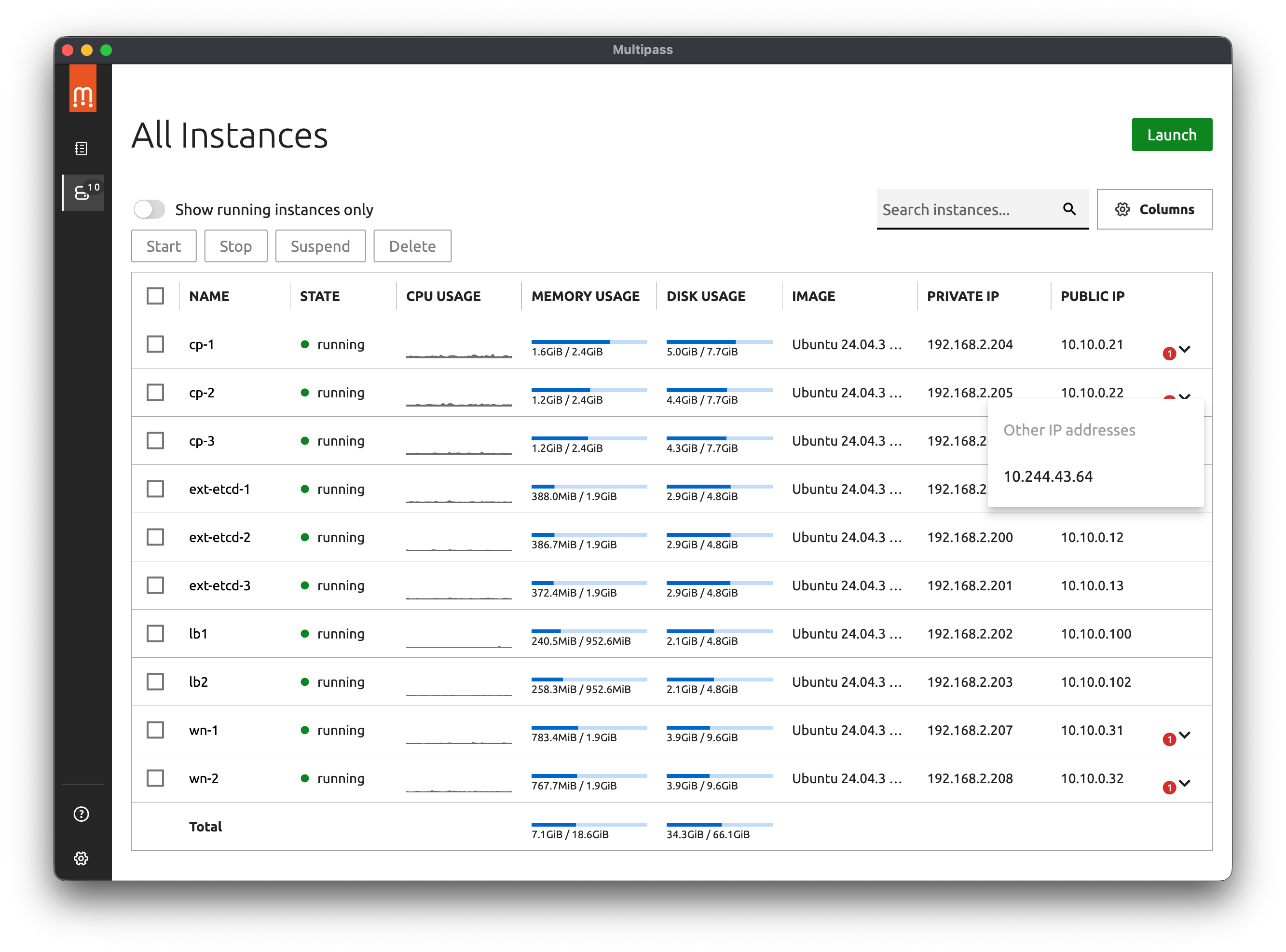
Deploying the first control panel node
Let’s deploy the first control panel node cp-1 with IP 10.10.0.21/24
export VM_IP="10.10.0.21/24"

multipass launch --name cp-1 \
  --cpus 2 --memory 2.5G --disk 8G \
  --network name=en0,mode=manual \
  --cloud-init <( yq eval-all '
      # Merge all files into a single object
      . as $item ireduce ({}; . *+ $item) |

      # Update network configuration
      with(.write_files[] | select(.path == "/etc/netplan/60-static-ip.yaml");
        .content |= (
          from_yaml |
          .network.ethernets.enp0s2.addresses += [strenv(VM_IP)] |
          to_yaml
        )
      ) ' \
      snipets/cloud-init-config.yaml \
      snipets/cloud-init-user.yaml \
      snipets/cloud-init-base.yaml \
      snipets/cloud-init-cp-haproxy.yaml \
      snipets/cloud-init-cp-haproxy-manifest.yaml)
After spinning up the control panel node, copy the following files from any etcd node to the first node of the control panel (this will not be necessary for other control panel nodes during the first two hours after initialization until the Secret with keys is removed by the system).
# 1. Prepare the files on the source node (10.10.0.11):
# Copy them to a temporary folder and change the owner to the current user so that scp can read them.
ssh -i ~/.ssh/k8s_cluster_key k8sadmin@10.10.0.11 " \
  mkdir -p /tmp/cert/ && \
  sudo cp /etc/kubernetes/pki/etcd/ca.crt /tmp/cert/ && \
  sudo cp /etc/kubernetes/pki/apiserver-etcd-client.* /tmp/cert/ && \
  sudo chown k8sadmin:k8sadmin /tmp/cert/* "

# 2. Transferring files between nodes via your local terminal:
# Use quotation marks to handle wildcards (*) on the remote side
scp -i ~/.ssh/k8s_cluster_key -r 'k8sadmin@10.10.0.11:/tmp/cert/' 'k8sadmin@10.10.0.21:/tmp'

# 3. Placing files on the target node (10.10.0.21):
# Create a folder (if it does not exist), move the files, and restore root privileges.
ssh -i ~/.ssh/k8s_cluster_key k8sadmin@10.10.0.21 " \
  sudo mkdir -p /etc/kubernetes/pki/etcd/ && \
  sudo mv /tmp/cert/ca.crt /etc/kubernetes/pki/etcd/ && \
  sudo chown root:root /etc/kubernetes/pki/etcd/ca.crt && \
  sudo mv /tmp/cert/apiserver-etcd-client.* /etc/kubernetes/pki/ && \
  sudo chown root:root /etc/kubernetes/pki/apiserver-etcd-client.*"

#4. Cleaning temporary files:
ssh -i ~/.ssh/k8s_cluster_key k8sadmin@10.10.0.11 "rm -rf /tmp/cert"
ssh -i ~/.ssh/k8s_cluster_key k8sadmin@10.10.0.21 "rm -rf /tmp/cert"
Checking the use of Static Pods HAProxy
We placed the etcd-proxy.yaml manifest in /etc/kubernetes/manifests/. However, kubelet ignores this folder until it receives a command to start (this will happen after the control panel node is initialized).
In addition, during the preflight phase, the kubeadm command attempts to verify the availability of etcd before any cluster components start running. Since our HAProxy is supposed to run as a Pod, it is not yet running, port 127.0.0.1:2379 is closed, and we will get a connection refused error when attempting to initialize the control plane node.
[preflight] Running pre-flight checks
	[WARNING ExternalEtcdVersion]: Get "https://127.0.0.1:2379/version": dial tcp 127.0.0.1:2379: connect: connection refused
-
Checking via cURL (the fastest way)
Since we are using TLS, we will need the certificates that we have already prepared for kubeadm. Let’s try to access etcd via the local port:
sudo curl --cacert /etc/kubernetes/pki/etcd/ca.crt \
     --cert /etc/kubernetes/pki/apiserver-etcd-client.crt \
     --key /etc/kubernetes/pki/apiserver-etcd-client.key \
     https://127.0.0.1:2379/health
Expected result:
{“health”:“true”}. If we get this response, it means that HAProxy is successfully forwarding traffic to one of the nodes in our etcd cluster. -
Checking the status of Static Pod
Let’s check if the HAProxy container has started at all. Since
kubectlmay not work if etcd is unavailable, use the container runtime tool (in our case, crictl):# For containerd (standard for modern K8s) sudo crictl ps | grep etcd-haproxy # View proxy logs sudo crictl logs $(sudo crictl ps -q --name etcd-haproxy)The HAProxy logs should contain entries about successful health checks (Health check passed) for backend nodes 10.10.0.11, .12, .13.
-
Checking via system sockets
Let’s make sure that HAProxy is actually listening on port 2379 on the local interface:
sudo ss -tulpn | grep 2379We should see that the process (haproxy) is listening on
127.0.0.1:2379.
Configuring kubeadm
Let’s create a file named kubeadm-config.yaml in the home directory of the k8sadmin user on the first node to initialize the control panel.
ssh -i ~/.ssh/k8s_cluster_key k8sadmin@10.10.0.21 "cat << 'EOF' > \$HOME/kubeadm-config.yaml
---
apiVersion: kubeadm.k8s.io/v1beta4
kind: ClusterConfiguration
kubernetesVersion: \"v1.34.3\"
controlPlaneEndpoint: \"10.10.0.100:6443\"
etcd:
  external:
    endpoints:
      - https://127.0.0.1:2379
    caFile: /etc/kubernetes/pki/etcd/ca.crt
    certFile: /etc/kubernetes/pki/apiserver-etcd-client.crt
    keyFile: /etc/kubernetes/pki/apiserver-etcd-client.key
networking:
  serviceSubnet: \"10.96.0.0/16\"
  podSubnet: \"10.244.0.0/16\"
  dnsDomain: \"cluster.local\"
EOF"
Starting initialization and bypassing ExternalEtcdVersion verification
When kubeadm init starts, it attempts to verify access to the external etcd cluster. However, we have “wrapped” access to the cluster in a local HAProxy, which kubelet runs as a static pod. However, at this point, we have not yet started kube-apiserver, which will take over the management of kubelet, which in turn will start the pod with haproxy. Therefore, we need to disable “preflight checks” for etcd (--ignore-preflight-errors=ExternalEtcdVersion). To initialize the cluster on the control plane node, run the following command:
sudo kubeadm init \
  --config $HOME/kubeadm-config.yaml \
  --upload-certs \
  --ignore-preflight-errors=ExternalEtcdVersion
What to look for during initialization:
After running the command, watch for the [control-plane] Creating static pod manifest for “kube-apiserver” step. If the API server starts successfully, it means that it was able to connect to etcd through your local proxy.
If the command stops again with an error, check if there are any processes left in the system from previous attempts:
# If you need to completely reset the status before a new attempt
sudo kubeadm reset -f
# After the reset, you will need to restart kubelet again to bring up the proxy.
sudo systemctl restart kubelet
Under normal circumstances, you will see the following log of kubeadm init running
View log
[init] Using Kubernetes version: v1.34.3
[preflight] Running pre-flight checks
	[WARNING ExternalEtcdVersion]: Get "https://127.0.0.1:2379/version": dial tcp 127.0.0.1:2379: connect: connection refused
[preflight] Pulling images required for setting up a Kubernetes cluster
[preflight] This might take a minute or two, depending on the speed of your internet connection
[preflight] You can also perform this action beforehand using 'kubeadm config images pull'
[certs] Using certificateDir folder "/etc/kubernetes/pki"
[certs] Generating "ca" certificate and key
[certs] Generating "apiserver" certificate and key
[certs] apiserver serving cert is signed for DNS names [cp-1 kubernetes kubernetes.default kubernetes.default.svc kubernetes.default.svc.cluster.local] and IPs [10.96.0.1 192.168.2.176 10.10.0.100]
[certs] Generating "apiserver-kubelet-client" certificate and key
[certs] Generating "front-proxy-ca" certificate and key
[certs] Generating "front-proxy-client" certificate and key
[certs] External etcd mode: Skipping etcd/ca certificate authority generation
[certs] External etcd mode: Skipping etcd/server certificate generation
[certs] External etcd mode: Skipping etcd/peer certificate generation
[certs] External etcd mode: Skipping etcd/healthcheck-client certificate generation
[certs] External etcd mode: Skipping apiserver-etcd-client certificate generation
[certs] Generating "sa" key and public key
[kubeconfig] Using kubeconfig folder "/etc/kubernetes"
[kubeconfig] Writing "admin.conf" kubeconfig file
[kubeconfig] Writing "super-admin.conf" kubeconfig file
[kubeconfig] Writing "kubelet.conf" kubeconfig file
[kubeconfig] Writing "controller-manager.conf" kubeconfig file
[kubeconfig] Writing "scheduler.conf" kubeconfig file
[control-plane] Using manifest folder "/etc/kubernetes/manifests"
[control-plane] Creating static Pod manifest for "kube-apiserver"
[control-plane] Creating static Pod manifest for "kube-controller-manager"
[control-plane] Creating static Pod manifest for "kube-scheduler"
[kubelet-start] Writing kubelet environment file with flags to file "/var/lib/kubelet/kubeadm-flags.env"
[kubelet-start] Writing kubelet configuration to file "/var/lib/kubelet/instance-config.yaml"
[patches] Applied patch of type "application/strategic-merge-patch+json" to target "kubeletconfiguration"
[kubelet-start] Writing kubelet configuration to file "/var/lib/kubelet/config.yaml"
[kubelet-start] Starting the kubelet
[wait-control-plane] Waiting for the kubelet to boot up the control plane as static Pods from directory "/etc/kubernetes/manifests"
[kubelet-check] Waiting for a healthy kubelet at http://127.0.0.1:10248/healthz. This can take up to 4m0s
[kubelet-check] The kubelet is healthy after 501.932756ms
[control-plane-check] Waiting for healthy control plane components. This can take up to 4m0s
[control-plane-check] Checking kube-apiserver at https://192.168.2.176:6443/livez
[control-plane-check] Checking kube-controller-manager at https://127.0.0.1:10257/healthz
[control-plane-check] Checking kube-scheduler at https://127.0.0.1:10259/livez
[control-plane-check] kube-controller-manager is healthy after 1.515332016s
[control-plane-check] kube-scheduler is healthy after 19.381430245s
[control-plane-check] kube-apiserver is healthy after 21.504025006s
[upload-config] Storing the configuration used in ConfigMap "kubeadm-config" in the "kube-system" Namespace
[kubelet] Creating a ConfigMap "kubelet-config" in namespace kube-system with the configuration for the kubelets in the cluster
[upload-certs] Storing the certificates in Secret "kubeadm-certs" in the "kube-system" Namespace
[upload-certs] Using certificate key:
7a088e936453ab3143f25cdb9827b8cac60888c75f91b9d6c2d08d23a32a2bc9
[mark-control-plane] Marking the node cp-1 as control-plane by adding the labels: [node-role.kubernetes.io/control-plane node.kubernetes.io/exclude-from-external-load-balancers]
[mark-control-plane] Marking the node cp-1 as control-plane by adding the taints [node-role.kubernetes.io/control-plane:NoSchedule]
[bootstrap-token] Using token: z28v5d.4vm6rzekoibear23
[bootstrap-token] Configuring bootstrap tokens, cluster-info ConfigMap, RBAC Roles
[bootstrap-token] Configured RBAC rules to allow Node Bootstrap tokens to get nodes
[bootstrap-token] Configured RBAC rules to allow Node Bootstrap tokens to post CSRs in order for nodes to get long term certificate credentials
[bootstrap-token] Configured RBAC rules to allow the csrapprover controller automatically approve CSRs from a Node Bootstrap Token
[bootstrap-token] Configured RBAC rules to allow certificate rotation for all node client certificates in the cluster
[bootstrap-token] Creating the "cluster-info" ConfigMap in the "kube-public" namespace
[kubelet-finalize] Updating "/etc/kubernetes/kubelet.conf" to point to a rotatable kubelet client certificate and key
[addons] Applied essential addon: CoreDNS
[addons] Applied essential addon: kube-proxy

Your Kubernetes control-plane has initialized successfully!

To start using your cluster, you need to run the following as a regular user:

  mkdir -p $HOME/.kube
  sudo cp -i /etc/kubernetes/admin.conf $HOME/.kube/config
  sudo chown $(id -u):$(id -g) $HOME/.kube/config

Alternatively, if you are the root user, you can run:

  export KUBECONFIG=/etc/kubernetes/admin.conf

You should now deploy a pod network to the cluster.
Run "kubectl apply -f [podnetwork].yaml" with one of the options listed at:
  https://kubernetes.io/docs/concepts/cluster-administration/addons/

You can now join any number of control-plane nodes running the following command on each as root:

  kubeadm join 10.10.0.100:6443 --token z28v5d.4vm6rzekoibear23 \
	--discovery-token-ca-cert-hash sha256:4c23033729b477d1fc30ae4b4041fe7dae70fa8defd5ecb57c571e969e00f8e0 \
	--control-plane --certificate-key 7a088e936453ab3143f25cdb9827b8cac60888c75f91b9d6c2d08d23a32a2bc9

Please note that the certificate-key gives access to cluster sensitive data, keep it secret!
As a safeguard, uploaded-certs will be deleted in two hours; If necessary, you can use
"kubeadm init phase upload-certs --upload-certs" to reload certs afterward.

Then you can join any number of worker nodes by running the following on each as root:

kubeadm join 10.10.0.100:6443 --token z28v5d.4vm6rzekoibear23 \
	--discovery-token-ca-cert-hash sha256:4c23033729b477d1fc30ae4b4041fe7dae70fa8defd5ecb57c571e969e00f8e0
After starting initialization with error ignoring, it is important to ensure that the API server was able to connect to the database and is not simply “hanging” in a waiting state.
Main check: API server status
If kubeadm init has passed the preflight stage, it will attempt to start kube-apiserver. If the API server cannot communicate with etcd through our proxy, it will continuously restart.
Let’s check the API server logs:
sudo tail -f /var/log/pods/kube-system_kube-apiserver-*/kube-apiserver/*.log
View API server log
k8sadmin@cp-1:~$ sudo tail -f /var/log/pods/kube-system_kube-apiserver-cp-1_70e58895431aff7a0cb441009519f1c6/kube-apiserver/0.log
2026-01-07T11:10:20.602046303+02:00 stderr F W0107 09:10:20.601902       1 logging.go:55] [core] [Channel #359 SubChannel #360]grpc: addrConn.createTransport failed to connect to {Addr: "127.0.0.1:2379", ServerName: "127.0.0.1:2379", BalancerAttributes: {"<%!p(pickfirstleaf.managedByPickfirstKeyType={})>": "<%!p(bool=true)>" }}. Err: connection error: desc = "transport: authentication handshake failed: context canceled"
2026-01-07T11:10:20.617773217+02:00 stderr F W0107 09:10:20.617570       1 logging.go:55] [core] [Channel #363 SubChannel #364]grpc: addrConn.createTransport failed to connect to {Addr: "127.0.0.1:2379", ServerName: "127.0.0.1:2379", BalancerAttributes: {"<%!p(pickfirstleaf.managedByPickfirstKeyType={})>": "<%!p(bool=true)>" }}. Err: connection error: desc = "transport: Error while dialing: dial tcp 127.0.0.1:2379: operation was canceled"
2026-01-07T11:10:20.634721419+02:00 stderr F W0107 09:10:20.634607       1 logging.go:55] [core] [Channel #367 SubChannel #368]grpc: addrConn.createTransport failed to connect to {Addr: "127.0.0.1:2379", ServerName: "127.0.0.1:2379", BalancerAttributes: {"<%!p(pickfirstleaf.managedByPickfirstKeyType={})>": "<%!p(bool=true)>" }}. Err: connection error: desc = "transport: authentication handshake failed: context canceled"
2026-01-07T11:10:20.644114716+02:00 stderr F W0107 09:10:20.644002       1 logging.go:55] [core] [Channel #371 SubChannel #372]grpc: addrConn.createTransport failed to connect to {Addr: "127.0.0.1:2379", ServerName: "127.0.0.1:2379", BalancerAttributes: {"<%!p(pickfirstleaf.managedByPickfirstKeyType={})>": "<%!p(bool=true)>" }}. Err: connection error: desc = "transport: Error while dialing: dial tcp 127.0.0.1:2379: operation was canceled"
2026-01-07T11:10:20.662781139+02:00 stderr F W0107 09:10:20.662426       1 logging.go:55] [core] [Channel #375 SubChannel #376]grpc: addrConn.createTransport failed to connect to {Addr: "127.0.0.1:2379", ServerName: "127.0.0.1:2379", BalancerAttributes: {"<%!p(pickfirstleaf.managedByPickfirstKeyType={})>": "<%!p(bool=true)>" }}. Err: connection error: desc = "transport: Error while dialing: dial tcp 127.0.0.1:2379: operation was canceled"
2026-01-07T11:10:20.675026234+02:00 stderr F W0107 09:10:20.674872       1 logging.go:55] [core] [Channel #379 SubChannel #380]grpc: addrConn.createTransport failed to connect to {Addr: "127.0.0.1:2379", ServerName: "127.0.0.1:2379", BalancerAttributes: {"<%!p(pickfirstleaf.managedByPickfirstKeyType={})>": "<%!p(bool=true)>" }}. Err: connection error: desc = "transport: authentication handshake failed: context canceled"
2026-01-07T11:10:20.860920026+02:00 stderr F W0107 09:10:20.860664       1 logging.go:55] [core] [Channel #383 SubChannel #384]grpc: addrConn.createTransport failed to connect to {Addr: "127.0.0.1:2379", ServerName: "127.0.0.1:2379", BalancerAttributes: {"<%!p(pickfirstleaf.managedByPickfirstKeyType={})>": "<%!p(bool=true)>" }}. Err: connection error: desc = "transport: Error while dialing: dial tcp 127.0.0.1:2379: operation was canceled"
2026-01-07T11:11:10.4594371+02:00 stderr F I0107 09:11:10.459184       1 controller.go:667] quota admission added evaluator for: replicasets.apps
2026-01-07T11:19:59.613078541+02:00 stderr F I0107 09:19:59.612638       1 cidrallocator.go:277] updated ClusterIP allocator for Service CIDR 10.96.0.0/16
This log indicates a very important stage: our kube-apiserver has successfully started, but the initialization process went through a “struggle” to connect to etcd.
Here’s what happened:
-
Error stage (Handshake failed)
The first lines of the log show errors:
transport: authentication handshake failed: context canceled and dial tcp 127.0.0.1:2379: operation was canceled.This means that:
- The API server tried to connect to your HAProxy (
127.0.0.1:2379). - The connection was established, but the TLS handshake was interrupted.
Reason: This happened at the same moment when
kubeadmwas still generating or substituting certificates, or when HAProxy had not yet established a stable session with the etcd backend nodes. This is normal behavior during a “cold” start of the control panel. - The API server tried to connect to your HAProxy (
-
Success phase (Stabilization)
Note the last lines:
I0107 09:11:10.459184 ... quota admission added evaluator for: replicasets.apps,I0107 09:19:59.612638 ... updated ClusterIP allocator for Service CIDR 10.96.0.0/16This is a win:
- The API server is alive. If it couldn’t connect to etcd, it would just crash (CrashLoopBackOff) and you wouldn’t see any logs about
cidrallocator.
The
ClusterIP allocatormessage means that the API server has already started writing data to etcd and managing cluster resources.The interval between entries (10 minutes) shows stable background operation of the controllers.
- The API server is alive. If it couldn’t connect to etcd, it would just crash (CrashLoopBackOff) and you wouldn’t see any logs about
-
Component status
The fact that you see folders for
kube-controller-managerandkube-schedulerin/var/log/pods/confirms thatkubeadmhas successfully completed the manifest creation phase and all three core Control Plane components are running.k8sadmin@cp-1:~$ sudo ls -la /var/log/pods/ total 28 drwxr-x--- 7 root root 4096 Jan 8 22:23 . drwxr-xr-x 11 root syslog 4096 Jan 8 22:23 .. drwxr-xr-x 3 root root 4096 Jan 8 22:23 kube-system_etcd-haproxy-cp-1_e2b3a81fe56706e845a17ba096c5dfad drwxr-xr-x 3 root root 4096 Jan 8 22:23 kube-system_kube-apiserver-cp-1_e74afa6943effdf6bbdcfc384bd87bb6 drwxr-xr-x 3 root root 4096 Jan 8 22:23 kube-system_kube-controller-manager-cp-1_b635ba5e5439cc2c581bf61ca1e6fb9e drwxr-xr-x 3 root root 4096 Jan 8 22:23 kube-system_kube-proxy-9qh54_9e21026d-0d6e-4f8c-a071-842149ffd24e drwxr-xr-x 3 root root 4096 Jan 8 22:23 kube-system_kube-scheduler-cp-1_0cf013b3f4c49c84241ee3a56735a15d
What to check now?
Since the API server is responding, run the following commands to finally verify that the first node is working:
-
Checking nodes:
kubectl get nodes(You should see cp-1 in NotReady status — this is normal because we haven’t installed Calico yet). -
Proxy health check (via HAProxy):
kubectl get --raw /healthz/etcd(Should returnok). -
Check etcd access points:
kubectl describe pod kube-apiserver-cp-1 -n kube-system | grep etcd(Make sure that onlyhttps://127.0.0.1:2379appears there). -
Check HAProxy: follow the link http://10.10.0.100:8404/stats to the load balancer dashboard in the control panel (In the k8s-api-backend section, the status of the first control panel node should be UP)
Next, it is recommended to deploy CNI plugins for the event network.
Installing Calico
We will use Calico to create a pods network. The article “Install Calico networking and network policy for on-premises deployments” describes in detail the process of installing Calico on your own equipment.
We will use Tigera Operator and custom resource definitions (CRDs). We will apply the following two manifests:
kubectl create -f https://raw.githubusercontent.com/projectcalico/calico/v3.31.3/manifests/operator-crds.yaml
kubectl create -f https://raw.githubusercontent.com/projectcalico/calico/v3.31.3/manifests/tigera-operator.yaml
Then we will download the file with the custom resources needed to configure Calico.
curl -O https://raw.githubusercontent.com/projectcalico/calico/v3.31.3/manifests/custom-resources-bpf.yaml
and specify the CIDR of the pod network as we specified it when initializing the first control panel node — 10.244.0.0/16 (the default value in Calico is cidr: 192.168.0.0/16).
After making the changes, apply the manifest to install Calico
kubectl create -f custom-resources-bpf.yaml
Track the installation using the command watch kubectl get tigerastatus. After a few minutes (6-7 minutes), all Calico components will have a value of True in the AVAILABLE column.
NAME                            AVAILABLE   PROGRESSING   DEGRADED   SINCE
apiserver                       True        False         False      4m9s
calico                          True        False         False      3m29s
goldmane                        True        False         False      3m39s
ippools                         True        False         False      6m4s
kubeproxy-monitor               True        False         False      6m15s
whisker                         True        False         False      3m19s
Once the Calico components are available, the control plane node will transition to the READY state.
What to do first: deploy Calico or run kubeadm join?
Technically, you can do either, but option #1 (CNI before Join) is best practice.
Option 1: CNI first, then Join (Recommended)
When you install CNI immediately after initializing the first node (cp-1), the cluster network becomes operational immediately.
- Node Status: The first node quickly transitions to
Readystatus. - CoreDNS: CoreDNS pods, which typically hang in
Pendingstatus without a network, start up. - Joining new nodes: When you join
cp-2andcp-3, they immediately receive network settings. System pods on new nodes will be able to start communicating with each other faster. - Convenience: You can see the actual health status of each new node immediately after it joins.
Option 2: Join first, then CNI
This is also a working scenario, but it looks more “alarming” during the process.
- Node status: All nodes (
cp-1,cp-2,cp-3) will be inNotReadystate. - CoreDNS: All system network components will be waiting.
- Joining:
kubeadm joinwill be successful because CNI is not required for the joining process itself (TLS Bootstrap and config copying) — the physical network between nodes is used here. - Risks: If a problem arises with the network communication of the pods themselves during the join (for example, health checks of system components), it will be more difficult for you to understand whether this is a
joinproblem or simply the absence of CNI.
We recommend following this order:
kubeadm initon cp-1.- Required
kubeconfigsettings. - CNI installation (e.g., Cilium, Calico, or Flannel).
- Check
kubectl get nodes(should beReady). - Transfer certificates to new nodes (if necessary).
kubeadm joinfor cp-2 and cp-3.
Deploying and joining the subsequent control panel nodes
Let’s use the ready-made command for the first control panel node. Replace the IP address with the appropriate one for each node:
- cp-2.yaml —
10.10.0.22 - cp-3.yaml —
10.10.0.23
Let’s create virtual machines:
export VM_IP="10.10.0.22/24"

multipass launch --name cp-2 \
  --cpus 2 --memory 2.5G --disk 8G \
  --network name=en0,mode=manual \
  --cloud-init <( yq eval-all '
      # Merge all files into a single object
      . as $item ireduce ({}; . *+ $item) |

      # Update network configuration
      with(.write_files[] | select(.path == "/etc/netplan/60-static-ip.yaml");
        .content |= (
          from_yaml |
          .network.ethernets.enp0s2.addresses += [strenv(VM_IP)] |
          to_yaml
        )
      ) ' \
      snipets/cloud-init-config.yaml \
      snipets/cloud-init-user.yaml \
      snipets/cloud-init-base.yaml \
      snipets/cloud-init-cp-haproxy.yaml \
      snipets/cloud-init-cp-haproxy-manifest.yaml)
Once the node is ready, we will join it as another control panel node. Using the output obtained during the initialization of the first control panel node, we will add the --ignore-preflight-errors=ExternalEtcdVersion parameter to it, just as we did during the initialization of the first control panel node:
sudo kubeadm join 10.10.0.100:6443 --token z28v5d.4vm6rzekoibear23 \
        --discovery-token-ca-cert-hash sha256:4c23033729b477d1fc30ae4b4041fe7dae70fa8defd5ecb57c571e969e00f8e0 \
        --control-plane --certificate-key 7a088e936453ab3143f25cdb9827b8cac60888c75f91b9d6c2d08d23a32a2bc9 \
        --ignore-preflight-errors=ExternalEtcdVersion
The log of joining the second control panel node will look like this
View the log of joining the second node
k8sadmin@cp-2:~$ sudo kubeadm join 10.10.0.100:6443 --token z28v5d.4vm6rzekoibear23 \
        --discovery-token-ca-cert-hash sha256:4c23033729b477d1fc30ae4b4041fe7dae70fa8defd5ecb57c571e969e00f8e0 \
        --control-plane --certificate-key 7a088e936453ab3143f25cdb9827b8cac60888c75f91b9d6c2d08d23a32a2bc9 \
        --ignore-preflight-errors=ExternalEtcdVersion
[preflight] Running pre-flight checks
[preflight] Reading configuration from the "kubeadm-config" ConfigMap in namespace "kube-system"...
[preflight] Use 'kubeadm init phase upload-config kubeadm --config your-config-file' to re-upload it.
[preflight] Running pre-flight checks before initializing the new control plane instance
[preflight] Pulling images required for setting up a Kubernetes cluster
[preflight] This might take a minute or two, depending on the speed of your internet connection
[preflight] You can also perform this action beforehand using 'kubeadm config images pull'
[download-certs] Downloading the certificates in Secret "kubeadm-certs" in the "kube-system" Namespace
[download-certs] Saving the certificates to the folder: "/etc/kubernetes/pki"
[certs] Using certificateDir folder "/etc/kubernetes/pki"
[certs] Generating "apiserver" certificate and key
[certs] apiserver serving cert is signed for DNS names [cp-2 kubernetes kubernetes.default kubernetes.default.svc kubernetes.default.svc.cluster.local] and IPs [10.96.0.1 192.168.2.177 10.10.0.100]
[certs] Generating "apiserver-kubelet-client" certificate and key
[certs] Generating "front-proxy-client" certificate and key
[certs] Valid certificates and keys now exist in "/etc/kubernetes/pki"
[certs] Using the existing "sa" key
[kubeconfig] Generating kubeconfig files
[kubeconfig] Using kubeconfig folder "/etc/kubernetes"
[kubeconfig] Writing "admin.conf" kubeconfig file
[kubeconfig] Writing "controller-manager.conf" kubeconfig file
[kubeconfig] Writing "scheduler.conf" kubeconfig file
[control-plane] Using manifest folder "/etc/kubernetes/manifests"
[control-plane] Creating static Pod manifest for "kube-apiserver"
[control-plane] Creating static Pod manifest for "kube-controller-manager"
[control-plane] Creating static Pod manifest for "kube-scheduler"
[check-etcd] Skipping etcd check in external mode
[kubelet-start] Writing kubelet configuration to file "/var/lib/kubelet/instance-config.yaml"
[patches] Applied patch of type "application/strategic-merge-patch+json" to target "kubeletconfiguration"
[kubelet-start] Writing kubelet configuration to file "/var/lib/kubelet/config.yaml"
[kubelet-start] Writing kubelet environment file with flags to file "/var/lib/kubelet/kubeadm-flags.env"
[kubelet-start] Starting the kubelet
[control-plane-join] Using external etcd - no local stacked instance added
[kubelet-check] Waiting for a healthy kubelet at http://127.0.0.1:10248/healthz. This can take up to 4m0s
[kubelet-check] The kubelet is healthy after 1.005951104s
[kubelet-start] Waiting for the kubelet to perform the TLS Bootstrap
[mark-control-plane] Marking the node cp-2 as control-plane by adding the labels: [node-role.kubernetes.io/control-plane node.kubernetes.io/exclude-from-external-load-balancers]
[mark-control-plane] Marking the node cp-2 as control-plane by adding the taints [node-role.kubernetes.io/control-plane:NoSchedule]
[control-plane-check] Waiting for healthy control plane components. This can take up to 4m0s
[control-plane-check] Checking kube-apiserver at https://192.168.2.177:6443/livez
[control-plane-check] Checking kube-controller-manager at https://127.0.0.1:10257/healthz
[control-plane-check] Checking kube-scheduler at https://127.0.0.1:10259/livez
[control-plane-check] kube-controller-manager is healthy after 2.950097ms
[control-plane-check] kube-scheduler is healthy after 6.396945ms
[control-plane-check] kube-apiserver is healthy after 501.413278ms

This node has joined the cluster and a new control plane instance was created:

* Certificate signing request was sent to apiserver and approval was received.
* The Kubelet was informed of the new secure connection details.
* Control plane label and taint were applied to the new node.
* The Kubernetes control plane instances scaled up.


To start administering your cluster from this node, you need to run the following as a regular user:

	mkdir -p $HOME/.kube
	sudo cp -i /etc/kubernetes/admin.conf $HOME/.kube/config
	sudo chown $(id -u):$(id -g) $HOME/.kube/config

Run 'kubectl get nodes' to see this node join the cluster.
If a long time has passed between creating the first control panel node and joining subsequent nodes, you may encounter this error.
[preflight] You can also perform this action beforehand using 'kubeadm config images pull'
[download-certs] Downloading the certificates in Secret "kubeadm-certs" in the "kube-system" Namespace
error: error execution phase control-plane-prepare/download-certs: error downloading certs: error downloading the secret: Secret "kubeadm-certs" was not found in the "kube-system" Namespace. This Secret might have expired. Please, run `kubeadm init phase upload-certs --upload-certs` on a control plane to generate a new one
Since we use External Etcd, the standard upload-certs procedure does not work as described in most instructions, because Kubernetes does not store keys to external databases in its secrets for security reasons.
If we need to add the next node or restore the current one, we need to perform a few additional steps.
This method is used when automatic key loading (--certificate-key) is not possible or the secret with the keys has expired.
-
Preparing the file system on the new node
On the new node (for example,
cp-4), create the necessary folders for certificates and manifests.# На новому вузлі sudo mkdir -p /etc/kubernetes/pki/etcd sudo mkdir -p /etc/kubernetes/manifests -
Manual transfer of certificates
We need to copy 9 files from any working control panel node (for example, from
cp-1) to the new node. The paths must match exactly.File on source (cp-1) Where to place on new (cp-4) Description /etc/kubernetes/pki/ca.crt/etc/kubernetes/pki/ca.crtCluster CA /etc/kubernetes/pki/ca.key/etc/kubernetes/pki/ca.keyCA key /etc/kubernetes/pki/sa.pub/etc/kubernetes/pki/sa.pubServiceAccount key (public) /etc/kubernetes/pki/sa.key/etc/kubernetes/pki/sa.keyServiceAccount key (private) /etc/kubernetes/pki/front-proxy-ca.crt/etc/kubernetes/pki/front-proxy-ca.crtCA for API aggregation /etc/kubernetes/pki/front-proxy-ca.key/etc/kubernetes/pki/front-proxy-ca.keyFront Proxy Key /etc/kubernetes/pki/apiserver-etcd-client.crt/etc/kubernetes/pki/apiserver-etcd-client.crtClient certificate for etcd /etc/kubernetes/pki/apiserver-etcd-client.key/etc/kubernetes/pki/apiserver-etcd-client.keyClient key for etcd /etc/kubernetes/pki/etcd/ca.crt/etc/kubernetes/pki/etcd/ca.crtCA for etcd itself Important: After copying, set the correct permissions for the key files (.key), otherwise kubeadm may complain about security:
sudo chmod 600 \ /etc/kubernetes/pki/apiserver-etcd-client.key \ /etc/kubernetes/pki/ca.key \ /etc/kubernetes/pki/front-proxy-ca.key \ /etc/kubernetes/pki/sa.keyNote: If you do not want to manually copy all 9 key and certificate files, but only copy the files
/etc/kubernetes/pki/etcd/ca.crt,/etc/kubernetes/pki/apiserver-etcd-client.key, and/etc/kubernetes/pki/apiserver -etcd-client.crtfiles to the target machine, you can first run the join command with the--certificate-keyparameter (as in the case of Stacked Etcd), which will help copy most of the necessary files managed by the apiserver. After that, manually copy the three files for etcd and run the join command without the--certificate-keyparameter.To speed up the copying process, you can use the following script
cat << 'EOF' > k8s-transit.sh #!/bin/bash # How to use # “Usage: $0 <SRC_IP> <DST_IP> <USER> [SSH_KEY_PATH]” # “Example: k8s-transit.sh 10.10.0.21 10.10.0.178 k8sadmin ~/.ssh/id_rsa” # --- DEFAULT VALUES --- DEFAULT_SRC="10.10.0.21" DEFAULT_DST="10.10.0.178" DEFAULT_USR="k8sadmin" DEFAULT_KEY="~/.ssh/k8s_cluster_key" # --------------------------- SRC=${1:-$DEFAULT_SRC} DST=${2:-$DEFAULT_DST} USR=${3:-$DEFAULT_USR} KEY_PATH=${4:-$DEFAULT_KEY} # Create an option for the SSH key SSH_OPTS="" if [ -f "$(eval echo $KEY_PATH)" ]; then SSH_OPTS="-i $KEY_PATH" fi echo “🚀 Using configuration:” echo “ Source (SRC): $SRC” echo “ Destination (DST): $DST” echo “ User: $USR” echo " SSH key: ${KEY_PATH:-'default'}" echo "----------------------------------------------------" # List of files FILES=( "/etc/kubernetes/pki/ca.crt" "/etc/kubernetes/pki/ca.key" "/etc/kubernetes/pki/sa.pub" "/etc/kubernetes/pki/sa.key" "/etc/kubernetes/pki/front-proxy-ca.crt" "/etc/kubernetes/pki/front-proxy-ca.key" "/etc/kubernetes/pki/apiserver-etcd-client.crt" "/etc/kubernetes/pki/apiserver-etcd-client.key" "/etc/kubernetes/pki/etcd/ca.crt" ) # 1. Making the folders ssh $SSH_OPTS -t $USR@$DST "sudo mkdir -p /etc/kubernetes/pki/etcd" # 2. File transfer for FILE in "${FILES[@]}"; do echo "Transfer: $FILE" ssh $SSH_OPTS $USR@$SRC "sudo cat $FILE" | ssh $SSH_OPTS $USR@$DST "sudo tee $FILE > /dev/null" done # 3. Owner and access rights settings echo "🔒 Change owner to root and set permissions to $DST..." ssh $SSH_OPTS -t $USR@$DST " \ sudo chown -R root:root /etc/kubernetes/pki && \ sudo chmod 644 /etc/kubernetes/pki/*.crt /etc/kubernetes/pki/sa.pub && \ sudo chmod 600 /etc/kubernetes/pki/*.key /etc/kubernetes/pki/sa.key" echo "✅ Successfully completed!" EOF chmod +x k8s-transit.sh -
Configuring access to etcd (Local Proxy)
Since we are using an architecture where each node communicates with etcd through a local proxy (HAProxy), let’s make sure that the proxy manifest is already on the new node.
If not, copy the
etcd-haproxy.yamlfile fromcp-1to the/etc/kubernetes/manifests/directory on the new node. This ensures that as soon as kubelet starts, it will establish a connection to the database. -
Generating the Join command (on the running node)
On the running node (
cp-1), generate a token and hash. We don’t need a certificate key because we already transferred the files manually.# On cp-1 kubeadm token create --print-join-commandAs a result, we will get a command that looks like this:
kubeadm join 10.10.0.100:6443 --token <token> --discovery-token-ca-cert-hash <hash> -
Start the join (on the new node)
Run the command on the new node, adding the
--control-planeflag. ⚠️ Do not add--certificate-key.# On the new node sudo kubeadm join 10.10.0.100:6443 \ --token <your_token> \ --discovery-token-ca-cert-hash sha256:<your_hash> \ --control-plane \ --ignore-preflight-errors=ExternalEtcdVersionView node joining log
k8sadmin@cp-4:~$ sudo kubeadm join 10.10.0.100:6443 --token efwfq8.puh8nqqk3a3dqqdx --discovery-token-ca-cert-hash sha256:4c23033729b477d1fc30ae4b4041fe7dae70fa8defd5ecb57c571e969e00f8e0 --control-plane --ignore-preflight-errors=ExternalEtcdVersion
[preflight] Running pre-flight checks
[preflight] Reading configuration from the "kubeadm-config" ConfigMap in namespace "kube-system"...
[preflight] Use 'kubeadm init phase upload-config kubeadm --config your-config-file' to re-upload it.
[preflight] Running pre-flight checks before initializing the new control plane instance
[preflight] Pulling images required for setting up a Kubernetes cluster
[preflight] This might take a minute or two, depending on the speed of your internet connection
[preflight] You can also perform this action beforehand using 'kubeadm config images pull'
[certs] Using certificateDir folder "/etc/kubernetes/pki"
[certs] Generating "front-proxy-client" certificate and key
[certs] Generating "apiserver" certificate and key
[certs] apiserver serving cert is signed for DNS names [cp-4 kubernetes kubernetes.default kubernetes.default.svc kubernetes.default.svc.cluster.local] and IPs [10.96.0.1 192.168.2.179 10.10.0.100]
[certs] Generating "apiserver-kubelet-client" certificate and key
[certs] Valid certificates and keys now exist in "/etc/kubernetes/pki"
[certs] Using the existing "sa" key
[kubeconfig] Generating kubeconfig files
[kubeconfig] Using kubeconfig folder "/etc/kubernetes"
[kubeconfig] Writing "admin.conf" kubeconfig file
[kubeconfig] Writing "controller-manager.conf" kubeconfig file
[kubeconfig] Writing "scheduler.conf" kubeconfig file
[control-plane] Using manifest folder "/etc/kubernetes/manifests"
[control-plane] Creating static Pod manifest for "kube-apiserver"
[control-plane] Creating static Pod manifest for "kube-controller-manager"
[control-plane] Creating static Pod manifest for "kube-scheduler"
[check-etcd] Skipping etcd check in external mode
[kubelet-start] Writing kubelet configuration to file "/var/lib/kubelet/instance-config.yaml"
[patches] Applied patch of type "application/strategic-merge-patch+json" to target "kubeletconfiguration"
[kubelet-start] Writing kubelet configuration to file "/var/lib/kubelet/config.yaml"
[kubelet-start] Writing kubelet environment file with flags to file "/var/lib/kubelet/kubeadm-flags.env"
[kubelet-start] Starting the kubelet
[control-plane-join] Using external etcd - no local stacked instance added
[kubelet-check] Waiting for a healthy kubelet at http://127.0.0.1:10248/healthz. This can take up to 4m0s
[kubelet-check] The kubelet is healthy after 503.676345ms
[kubelet-start] Waiting for the kubelet to perform the TLS Bootstrap
[mark-control-plane] Marking the node cp-4 as control-plane by adding the labels: [node-role.kubernetes.io/control-plane node.kubernetes.io/exclude-from-external-load-balancers]
[mark-control-plane] Marking the node cp-4 as control-plane by adding the taints [node-role.kubernetes.io/control-plane:NoSchedule]
[control-plane-check] Waiting for healthy control plane components. This can take up to 4m0s
[control-plane-check] Checking kube-apiserver at https://192.168.2.179:6443/livez
[control-plane-check] Checking kube-controller-manager at https://127.0.0.1:10257/healthz
[control-plane-check] Checking kube-scheduler at https://127.0.0.1:10259/livez
[control-plane-check] kube-scheduler is healthy after 9.840373ms
[control-plane-check] kube-controller-manager is healthy after 11.326085ms
[control-plane-check] kube-apiserver is healthy after 21.681901ms

This node has joined the cluster and a new control plane instance was created:

* Certificate signing request was sent to apiserver and approval was received.
* The Kubelet was informed of the new secure connection details.
* Control plane label and taint were applied to the new node.
* The Kubernetes control plane instances scaled up.


To start administering your cluster from this node, you need to run the following as a regular user:

	mkdir -p $HOME/.kube
	sudo cp -i /etc/kubernetes/admin.conf $HOME/.kube/config
	sudo chown $(id -u):$(id -g) $HOME/.kube/config

Run 'kubectl get nodes' to see this node join the cluster.
If you have Stacked Etcd, the following command will be sufficient to obtain new instructions for joining nodes to the cluster. In this architecture, kubeadm fully automates the process: it downloads all the necessary certificates (including those required to create a new etcd member node) into the kubeadm-certs secret.
# On node cp-1
ssh -i ~/.ssh/k8s_cluster_key k8sadmin@10.10.0.21
sudo -sE
$(kubeadm token create --print-join-command) --control-plane --certificate-key $(kubeadm init phase upload-certs --upload-certs | tail -1)
This works for Stacked Etcd:
-
upload-certs: Unlike External Etcd, in Stacked modekubeadmknows about all local etcd certificates and packs them into a bundle. -
--certificate-key: You get a decryption key that allows the new node to automatically download this package to its/etc/kubernetes/pki/directory. -
Automation: The new node does not need to copy anything manually — it will create both Kubernetes certificates and a local copy of etcd, joining it to the existing participants.
This command works great, but: kubeadm init phase upload-certs --upload-certs uploads certificates to the secret for only 2 hours.
If you plan to add nodes later, you will have to run this command again. If you are doing this “here and now,” this is the ideal and fastest way.
Tip: If there have already been failed attempts to join on the new node, be sure to run sudo kubeadm reset -f before running the new command.
Disconnecting and replacing a control panel node
Removing a control panel node if it fails or to replace it has a significant advantage in an architecture with External Etcd: since the database is outside the Kubernetes nodes, you only risk API availability, not data integrity.
To remove a control plane node (for example, cp-2) from the cluster, follow these steps.
-
Prepare the cluster
Perform these steps on another healthy node (for example,
cp-1) or communicate with the control panel via the HAProxy balancer address.- Remove the load from the node: Allow current tasks to complete and prevent new pods from being assigned
kubectl cordon cp-2 kubectl drain cp-2 --ignore-daemonsets --delete-emptydir-data- Remove the node from the Kubernetes registry: This will delete the Node object and associated certificates (if auto-rotation is used).
kubectl delete node cp-2 -
Cleaning up the node itself (on cp-2)
Now go to the node you want to disconnect.
-
Resetting kubeadm settings: This will remove static pod manifests (
kube-apiserver,controller-manager, etc.) and configuration files in/etc/kubernetes.sudo kubeadm reset -f -
Clearing IPVS/Iptables:
sudo iptables -F && sudo iptables -t nat -F && sudo iptables -t mangle -F && sudo iptables -X # If you used IPVS: sudo ipvsadm --clear -
Removing residual files: It is recommended to delete the certificate folder to avoid conflicts when reconnecting.
sudo rm -rf /etc/kubernetes/pki
-
-
Cleaning up Etcd
This is where the main difference between the architectures comes into play.
For External Etcd:
Since etcd runs separately, nothing needs to be done. The external etcd cluster doesn’t even know that the API server on
cp-2has stopped working. You have simply removed one of the database clients.For Stacked Etcd:
This is the most important step. Since etcd was running locally on
cp-2, it was part of the quorum. If you simply shut down the node, the etcd cluster will consider it “down” and wait for it to return, which can negatively affect the quorum.- You need to log in to another master node.
-
Find the etcd member ID for cp-2:
kubectl exec -n kube-system etcd-cp-1 -- etcdctl \ --endpoints=https://127.0.0.1:2379 \ --cacert=/etc/kubernetes/pki/etcd/ca.crt \ --cert=/etc/kubernetes/pki/etcd/server.crt \ --key=/etc/kubernetes/pki/etcd/server.key \ member list -
Remove this ID:
kubectl exec -n kube-system etcd-cp-1 -- etcdctl \
  --endpoints=https://127.0.0.1:2379 \
  --cacert=/etc/kubernetes/pki/etcd/ca.crt \
  --cert=/etc/kubernetes/pki/etcd/server.crt \
  --key=/etc/kubernetes/pki/etcd/server.key \
  member remove <MEMBER_ID>
-
Load Balancer Update
If you have an external balancer in front of your control panel (e.g., HAProxy or cloud LB), be sure to remove the
cp-2IP address from the backend configuration.If you are using local HAProxy on each node (as we configured earlier), the other nodes will simply stop referring to
cp-2, but the configuration on the worker nodes should be updated so that they do not waste time trying to connect to the missing control panel node. -
Replacing a node (if necessary)
If you want to replace
cp-2with a new node with the same name:
- Prepare a new OS.
- Follow the steps from the previous instructions (copy 9 certificate files + proxy manifest).
- Run
kubeadm join.
Deploying Worker Nodes
To deploy worker nodes, we will use the settings from snipets/cloud-init-config.yaml, snipets/cloud-init-user.yaml, and snipets/cloud-init-base.yaml. During the file merging process, we will remove kubectl from the list of packages to install. For worker nodes, we will use IP addresses from the range 10.10.0.30 — 10.10.0.99.
export VM_IP="10.10.0.31/24"

multipass launch --name wn-1 \
  --cpus 2 --memory 2G --disk 10G \
  --network name=en0,mode=manual \
  --cloud-init <( yq eval-all '
      # Merge all files into a single object
      . as $item ireduce ({}; . *+ $item) |

      # Removing kubectl from the package list
      del(.packages[] | select(. == "kubectl")) |

      # Update network configuration
      with(.write_files[] | select(.path == "/etc/netplan/60-static-ip.yaml");
        .content |= (
          from_yaml |
          .network.ethernets.enp0s2.addresses += [strenv(VM_IP)] |
          to_yaml
        )
      ) ' \
      snipets/cloud-init-config.yaml \
      snipets/cloud-init-user.yaml \
      snipets/cloud-init-base.yaml )
Once the virtual machine has been provisioned, we will log into it via ssh.
ssh -i ~/.ssh/k8s_cluster_key k8sadmin@10.10.0.31
And let’s join it to the cluster using the command we received during the initialization of the control panel:
sudo kubeadm join 10.10.0.100:6443 --token jfugsz.51c9pp44fwifcu94 \
  --discovery-token-ca-cert-hash sha256:736ca5cf47fca3f4c1fd9c414f6ba70e4fefdb2f52deec5e2526f5ebccf838d6
The Calico operator (tigera-operator) will register the node in the event network, and in a minute or two, the status of the working node will change to READY. The node is ready to receive a workload.
Installing MetalLB
For instructions on installing MetalLB to balance access to worker nodes, refer to the article “Deploying a Kubernetes cluster on a local computer: A Complete Step-by-Step Guide”.
Your cluster is now ready to accept workloads.
Testing the cluster
multipass exec cp1 -- kubectl get nodes
multipass exec cp1 -- kubectl get pods -A
Summary
This guide demonstrates a complete deployment of an HA Kubernetes cluster with an external etcd topology. The cluster is ready to use and can be easily scaled. All steps follow the DRY principle and can be adapted to different environments.
Appendices
Network architecture for HA Kubernetes with external etcd
Look…
Recommended network topology — Subnet: 10.10.0.0/22 (1024 addresses)
This subnet is large enough for expansion and is logically divided into blocks:
┌─────────────────────────────────────────────────────────┐
│ 10.10.0.0/22      - Kubernetes home subnet.             │
├─────────────────────────────────────────────────────────┤
│ 10.10.0.0/26      - Infrastructure (64 addresses)       │
│   10.10.0.1       - Gateway (macOS host)                │
│   10.10.0.2       - DNS (optional)                      │
│   10.10.0.10      - HAProxy/Load Balancer               │
│   10.10.0.11-20   - Infrastructure reserve.             │
├─────────────────────────────────────────────────────────┤
│ 10.10.0.64/26     - etcd cluster (64 addresses)         │
│   10.10.0.65      - etcd-1                              │
│   10.10.0.66      - etcd-2                              │
│   10.10.0.67      - etcd-3                              │
│   10.10.0.68-70   - Reserve for additional etcd         │
├─────────────────────────────────────────────────────────┤
│ 10.10.0.128/25    - Control Plane (128 addresses)       │
│   10.10.0.129     - k8s-master-1                        │
│   10.10.0.130     - k8s-master-2                        │
│   10.10.0.131     - k8s-master-3                        │
│   10.10.0.132-140 - Reserve for additional masters      │
├─────────────────────────────────────────────────────────┤
│ 10.10.1.0/24      - Worker Nodes (256 addresses)        │
│   10.10.1.10      - k8s-worker-1                        │
│   10.10.1.11      - k8s-worker-2                        │
│   10.10.1.12      - k8s-worker-3                        │
│   10.10.1.13      - k8s-worker-4                        │
│   10.10.1.14      - k8s-worker-5                        │
│   10.10.1.15-100  - Reserve for additional workers      │
├─────────────────────────────────────────────────────────┤
│ 10.10.2.0/24   - Pod Network (256 addresses) - optional │
│   Used for testing.                                     │
├─────────────────────────────────────────────────────────┤
│ 10.10.3.0/24   - Service Network - optional             │
│   Used for testing.                                     │
└─────────────────────────────────────────────────────────┘
Detailed IP address plan
1. Infrastructure (10.10.0.0/26)
| IP address | Hostname | Role |
|---|---|---|
| 10.10.0.1 | macOS-host | Gateway/Bridge |
| 10.10.0.10 | haproxy-lb | Load Balancer (optional) |
2. etcd Cluster (10.10.0.64/26)
| IP address | Hostname | Role | vCPU | RAM | Disk |
|---|---|---|---|---|---|
| 10.10.0.65 | etcd-1 | etcd member | 2 | 2GB | 20GB |
| 10.10.0.66 | etcd-2 | etcd member | 2 | 2GB | 20GB |
| 10.10.0.67 | etcd-3 | etcd member | 2 | 2GB | 20GB |
Minimum etcd configuration: 3 nodes for quorum
3. Control Plane (10.10.0.128/25)
| IP address | Hostname | Role | vCPU | RAM | Disk |
|---|---|---|---|---|---|
| 10.10.0.129 | k8s-master-1 | Control Plane (Primary) | 2 | 4GB | 40GB |
| 10.10.0.130 | k8s-master-2 | Control Plane | 2 | 4GB | 40GB |
| 10.10.0.131 | k8s-master-3 | Control Plane | 2 | 4GB | 40GB |
Minimum HA configuration: 3 master nodes
4. Worker Nodes (10.10.1.0/24)
| IP address | Hostname | Role | vCPU | RAM | Disk |
|---|---|---|---|---|---|
| 10.10.1.10 | k8s-worker-1 | Worker Node | 2 | 4GB | 50GB |
| 10.10.1.11 | k8s-worker-2 | Worker Node | 2 | 4GB | 50GB |
| 10.10.1.12 | k8s-worker-3 | Worker Node | 2 | 4GB | 50GB |
Recommendation: Minimum 2-3 workers for testing, can scale to 100+
Kubernetes internal networks (do not conflict with VMs)
# Pod Network (CNI - Calico/Flannel/Weave)
--pod-network-cidr=192.168.0.0/16

# Service Network
--service-cidr=172.16.0.0/16

# Cluster DNS
--cluster-dns=172.16.0.10
These networks are virtual and do not conflict with VM addresses 10.10.x.x
Alternative subnet options
Option 1: Compact topology (10.10.10.0/24)
For a small cluster (up to 10 nodes):
10.10.10.0/24 - Main subnet (256 addresses)
├─ 10.10.10.1      - Gateway
├─ 10.10.10.10-12  - etcd (3 nodes)
├─ 10.10.10.20-22  - Control Plane (3 masters)
└─ 10.10.10.30-50  - Workers (up to 20 workers)
Option 2: Extended topology (10.10.0.0/16)
For a large production cluster:
10.10.0.0/16 - All subnet (65536 addresses)
├─ 10.10.1.0/24   - Infrastructure
├─ 10.10.10.0/24  - etcd cluster
├─ 10.10.20.0/24  - Control Plane
├─ 10.10.30.0/22  - Workers (1024 addresses)
└─ 10.10.40.0/22  - Reserve for expansion
Option 3: Classic private network (172.16.0.0/16)
Alternative if 10.10.x.x is already taken:
172.16.0.0/16
├─ 172.16.1.0/24   - Infrastructure + etcd
├─ 172.16.2.0/24   - Control Plane
└─ 172.16.10.0/23  - Workers (512 addresses)
DNS records (recommended)
Add to /etc/hosts on macOS:
# Kubernetes HA Cluster
10.10.0.1       gateway.k8s.local
10.10.0.10      lb.k8s.local haproxy.k8s.local

# etcd cluster
10.10.0.65      etcd-1.k8s.local
10.10.0.66      etcd-2.k8s.local
10.10.0.67      etcd-3.k8s.local

# Control Plane
10.10.0.129     master-1.k8s.local k8s-master-1
10.10.0.130     master-2.k8s.local k8s-master-2
10.10.0.131     master-3.k8s.local k8s-master-3

# Workers
10.10.1.10      worker-1.k8s.local k8s-worker-1
10.10.1.11      worker-2.k8s.local k8s-worker-2
10.10.1.12      worker-3.k8s.local k8s-worker-3

# API endpoint (points to LB or any master)
10.10.0.10      api.k8s.local kubernetes.k8s.local
Troubleshooting
Look…
Fix --pod-network-cidr
Q: After installing CNI plugin (Flannel), I noticed that I forgot to use --pod-network-cidr=10.244.0.0/16 when initializing an HA cluster with three control planes. How can I fix this without deleting the cluster?
Answer
To fix the CIDR of the Pod network in a running HA cluster (3 control planes) without completely reinstalling it, you need to update the kube-apiserver configuration, the kubeadm settings in ClusterConfiguration, the kube-proxy settings, and the configuration of Flannel itself.
1. Update the ClusterConfiguration
Kubernetes stores the initialization settings in the ConfigMap. These need to be changed so that future operations (such as joining new nodes) use the correct CIDR.
-
Увше ConfigMap:
kubectl edit configmap kubeadm-config -n kube-system -
Find the
networkingsection and change or add thepodSubnetparameter:networking: podSubnet: 10.244.0.0/16
2. Update Control Plane Manifests (on all 3 nodes)
On each of the three control plane nodes, you need to update the static manifest kube-controller-manager so that it correctly allocates IP addresses to the nodes.
- Open the file:
sudo vim /etc/kubernetes/manifests/kube-controller-manager.yaml -
Find the
--cluster-cidrflag and set it:- --cluster-cidr=10.244.0.0/16 - --allocate-node-cidrs=true - After saving the file, Kubelet will automatically restart the component. Repeat this on all three master nodes.
3. Update kube-proxy settings
kube-proxy uses CIDR to configure IPTables/IPVS rules.
-
Edit the ConfigMap for kube-proxy:
kubectl edit configmap kube-proxy -n kube-system -
Find the
clusterCIDRparameter and change it:clusterCIDR: "10.244.0.0/16" -
Restart all kube-proxy Pods to apply the changes:
kubectl rollout restart daemonset kube-proxy -n kube-systemEverything should work now. If it doesn’t, skip to the next steps.
4. Reinstall Flannel with the correct CIDR
Since Flannel is already installed with incorrect (or no) settings, it needs to be reconfigured.
-
Download the latest Flannel manifest from the official repository:
curl -sLO https://github.com/flannel-io/flannel/releases/latest/download/kube-flannel.yml -
Check the net-conf.json section in the downloaded file. It should contain:
"Network": "10.244.0.0/16" -
Remove the old Flannel and install the updated one:
kubectl delete -f kube-flannel.yml # if you have the old file
kubectl apply -f kube-flannel.yml
5. Update Node Specs (PodCIDR)
This is the most critical step. Each node in the cluster already has an old (or empty) podCIDR assigned to it in its properties. These need to be updated manually.
For each node (master and worker), run:
kubectl patch node <node-name> -p '{"spec":{"podCIDR":"10.244.X.0/24", "podCIDRs":["10.244.X.0/24"]}}'
Where X is a unique number for each node (e.g. 0, 1, 2).
6. Final Reboot
For the changes to take effect and Pods to receive addresses from the new range:
- Reboot the nodes one by one or delete all existing Pods in all namespaces so that they are recreated with the new IPs.
- Check the network status:
kubectl get nodes -o jsonpath='{.items[*].spec.podCIDR}'
Important: If you already have workloads running, their IP addresses will not change automatically until the Pods are recreated. On an HA cluster, this process can be done one by one for each node (cordon -> drain -> reboot -> uncordon) to avoid downtime.
Resetting etcd to its original state
Q: How do I clear the data in a cluster? Reset it to its original state?
Answer
To reset etcd to its “original” (empty) state, you need to completely delete its data on each node. Since etcd is a critical component of Kubernetes, this process will effectively destroy all of your cluster configuration (Deployment, Services, Secrets, etc.).
Step-by-step instructions for a cluster deployed via kubeadm:
1. Stop services that depend on etcd
On each master node (control-plane), you need to temporarily remove the manifests of static pods so that Kubernetes stops trying to restart etcd and the API server:
sudo mv /etc/kubernetes/manifests/*.yaml /tmp/
Wait a few seconds for the containers to stop. You can check via crictl ps or docker ps.
2. Clear data on all nodes
Delete the contents of the etcd data directory (usually /var/lib/etcd). This needs to be done on all nodes where etcd was running:
sudo rm -rf /var/lib/etcd/*
3. Initialize a new “empty” cluster
Now you need to get etcd to start as a new cluster.
- Option A (Full cluster reset via kubeadm):
If you want to start from scratch (including certificates and K8s configuration), run on each node:
sudo kubeadm reset -f
sudo rm -rf /etc/cni/net.d
# After that, run 'kubeadm init' again on the first node
- Option B (Only clean etcd data without reinstalling K8s):
If the certificates in /etc/kubernetes/pki/etcd/ are still valid, you can try to recreate only the database. Revert the manifests:
sudo mv /tmp/etcd.yaml /etc/kubernetes/manifests/
Important: If --initial-cluster-state=existing is specified in etcd.yaml, you may need to manually change it to new or use kubeadm init phase etcd local to generate a correct manifest for the new initialization.
4. Cleanup via etcdctl (if cluster is running)
If the cluster is “alive” but you just want to delete all data (keys) without stopping the services:
etcdctl \
  --endpoints https://127.0.0.1:2379 \
  --cacert /etc/kubernetes/pki/etcd/ca.crt \
  --cert /etc/kubernetes/pki/etcd/peer.crt \
  --key /etc/kubernetes/pki/etcd/peer.key \
  del "" --prefix
This will delete all Kubernetes objects but will preserve the etcd cluster structure itself.
Warning: After a complete cleanup of /var/lib/etcd data, the API server will not be able to start until you reinitialize it via kubeadm init.
Kubeconfig
Q: How do I properly migrate kubeconfig to localhost and add the cluster to the list of other clusters?
Answer
To properly migrate kubeconfig and merge it with your existing clusters, it is best to avoid manually editing the main configuration file, as this often leads to YAML indentation errors.
1. Upload the file to localhost
Use ssh to read the file directly into a new local file. Replace 10.10.0.21 with the IP of your cp-1.
# On your local machine
ssh -i ~/.ssh/k8s_cluster_key k8sadmin@10.10.0.21 "sudo cat /etc/kubernetes/admin.conf" > kubeconfig-new.yaml
2. Clean up the configuration (Important)
The admin.conf file generated by kubeadm usually has standard names (kubernetes-admin, kubernetes). If you have multiple clusters, these names will conflict.
Open kubeconfig-new.yaml in an editor and rename the key fields. For example, if your cluster is called prod-cluster:
-
clusters.name:kubernetes➡️prod-cluster -
contexts.name:kubernetes-admin@kubernetes➡️admin@prod-cluster -
contexts.context.cluster:kubernetes➡️prod-cluster -
contexts.context.user:kubernetes-admin➡️admin-prod -
users.name:kubernetes-admin➡️admin-prod
Tip: If you are using a Load Balancer (10.10.0.100), make sure that the server field specifies this IP address, not the internal IP cp-1.
3. Merge with the main kubeconfig
Instead of copying text, use kubectl to merge multiple files via an environment variable.
-
Temporarily merge the files in memory:
export KUBECONFIG=~/.kube/config:./kubeconfig-new.yaml -
Write the result to a new file (flattened):
kubectl config view --flatten > ~/.kube/config_new -
Replace the old config with the new one:
mv ~/.kube/config_new ~/.kube/config
chmod 600 ~/.kube/config
4. Check and switch
Now you can see all your clusters:
# List contexts
kubectl config get-contexts

# Switch to new cluster
kubectl config use-context admin@prod-cluster

# Check connectivity
kubectl get nodes
Alternative (if you are using multiple files)
If you do not If you want to mix everything into a single ~/.kube/config file, you can simply keep them separate in ~/.kube/configs/ and add the path to them in your .bashrc or .zshrc:
export KUBECONFIG=$HOME/.kube/config:$HOME/.kube/configs/prod-cluster.yaml
Or another option.
The kubectl config command set allows you to manipulate the configuration much cleaner. Since kubeadm always creates standard names (kubernetes, kubernetes-admin), the best strategy is to import the file with the new name context and kubectl will automatically pull in the cluster and user associated with it.
Import and rename script
This approach does not edit temp-k8s.yaml, but immediately merges it into the main config with the new names.
# 1. Upload the file
ssh k8sadmin@10.10.0.21 "sudo cat /etc/kubernetes/admin.conf" > temp-k8s.yaml

# 2. Determine the name of the new cluster
NEW_NAME="k8s-cluster-prod"

# 3. Add the cluster, user, and context to your main ~/.kube/config
# We pull the data from the temporary file using 'view'

# Add the cluster
kubectl config set-cluster "$NEW_NAME" \
  --server=$(kubectl config view --kubeconfig=temp-k8s.yaml -o jsonpath='{.clusters[0].cluster.server}') \
  --certificate-authority-data=$(kubectl config view --kubeconfig=temp-k8s.yaml --raw -o jsonpath='{.clusters[0].cluster.certificate-authority-data}')

# Add the user
kubectl config set-credentials "admin-$NEW_NAME" \
  --client-certificate-data=$(kubectl config view --kubeconfig=temp-k8s.yaml --raw -o jsonpath='{.users[0].user.client-certificate-data}') \
  --client-key-data=$(kubectl config view --kubeconfig=temp-k8s.yaml --raw -o jsonpath='{.users[0].user.client-key-data}')

# Creating context
kubectl config set-context "$NEW_NAME" \
  --cluster="$NEW_NAME" \
  --user="admin-$NEW_NAME"

# 4. Delete the temporary file
rm temp-k8s.yaml